Wall of Love Settings
The wall of love is the widget on your website that shows your approved testimonials. Everything about how it looks is set in Wall of Love in the sidebar — no code changes on your site when you tweak it.
The editor#
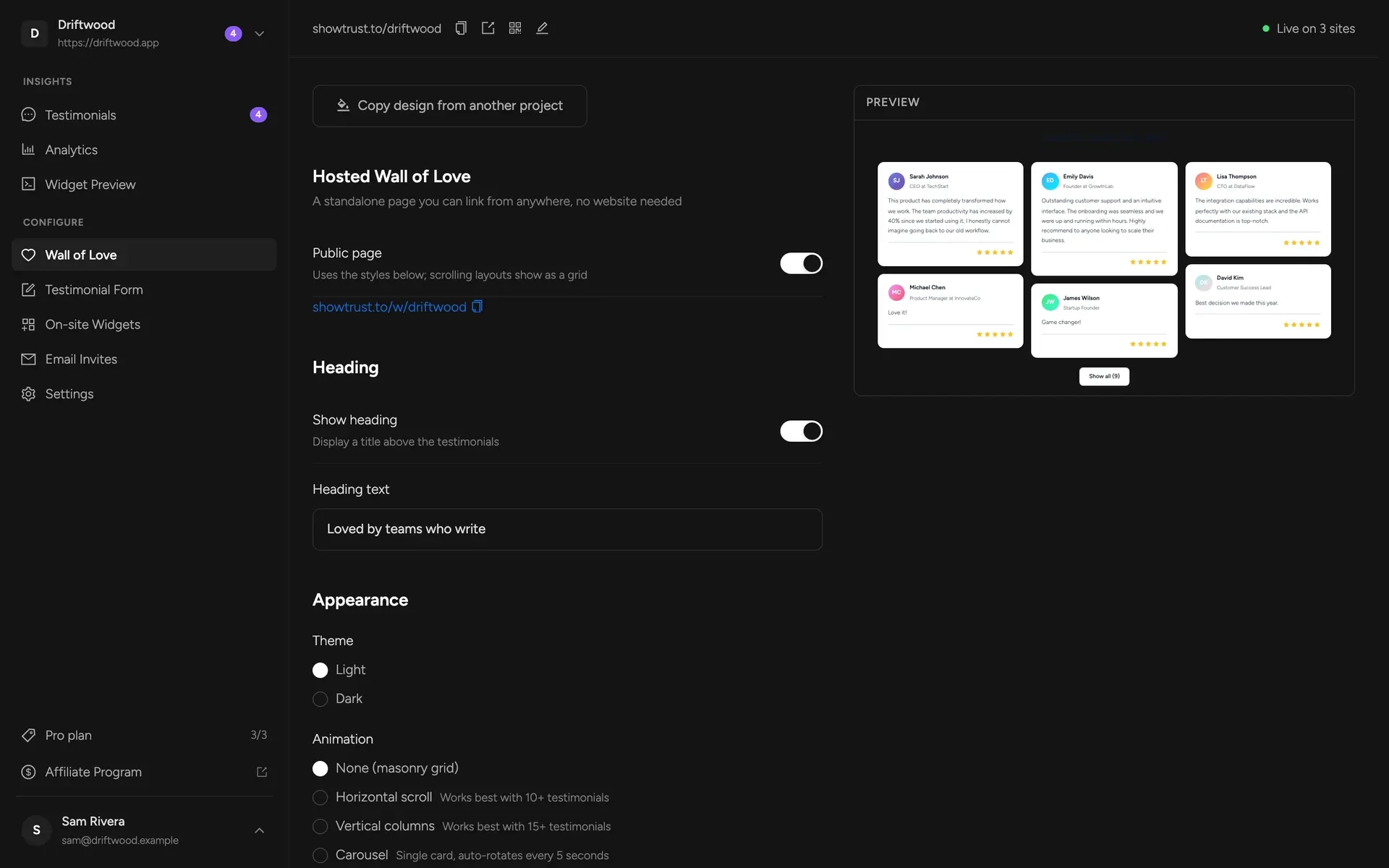
Settings are on the left, a live preview is on the right. The preview uses sample testimonials so you can judge the design at a glance; to see your wall with your real testimonials, open Widget Preview. Click Save Settings to publish your changes — your site picks them up within about five minutes (the widget is cached briefly so it loads fast).
Heading#
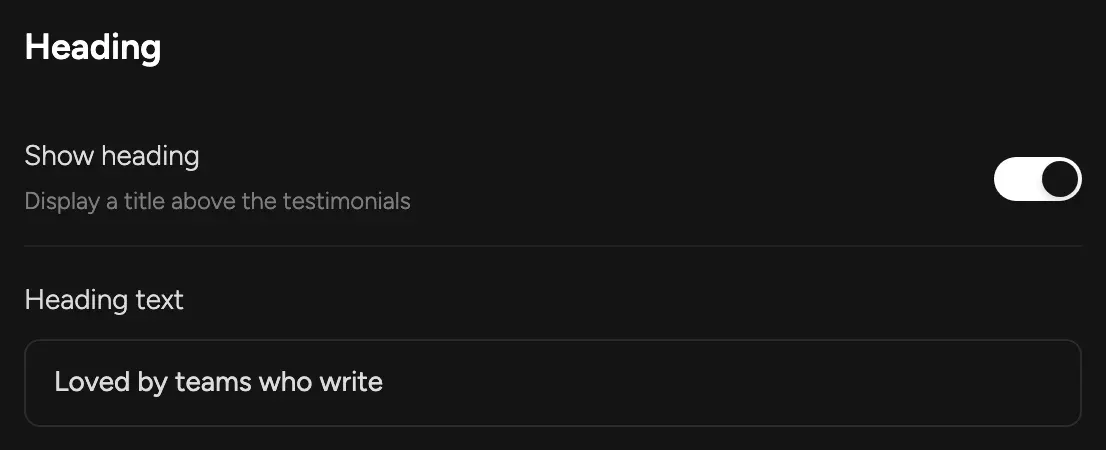
Show heading — a title above your testimonialsHeading text — leave empty for “What people say about {your project}”Appearance#
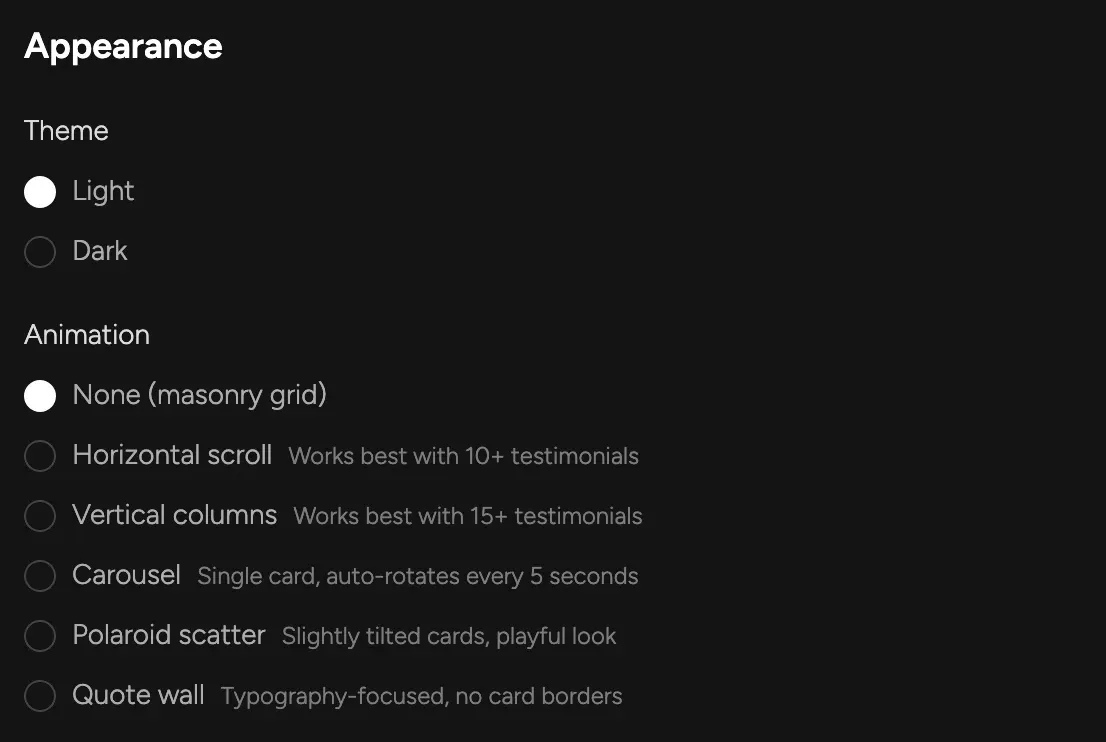
Theme — light or dark cards, to sit naturally on your pageAnimation — the layout of your wall (six options, below)- None (masonry grid) — a static, Pinterest-style grid. The default.
- Horizontal scroll — one row that scrolls sideways on its own. Works best with 10+ testimonials.
- Vertical columns — three columns scrolling up and down. Works best with 15+.
- Carousel — one testimonial at a time, rotating every five seconds.
- Polaroid scatter — slightly tilted cards, a playful look.
- Quote wall — typography-first, no card borders.
The three moving layouts (horizontal scroll, vertical columns and carousel) pause while a visitor hovers or tabs into them, and show a small Pause button above the wall. It works with mouse and keyboard, and once a visitor pauses, the wall stays paused until they press Play. Visitors whose system asks for reduced motion get a still wall and no button.
See every layout on a real page in Layouts & Styles.
Hosted wall page#
Every project also gets a public page at showtrust.to/w/<your-slug> with all your approved testimonials, the count, your average rating and topic filters built from your tags — useful when you want to link to your social proof instead of embedding it. It uses your wall’s card style, palette and theme; scrolling layouts are shown as a grid so every testimonial is visible. Turn it off with the Public page switch at the top of the editor.
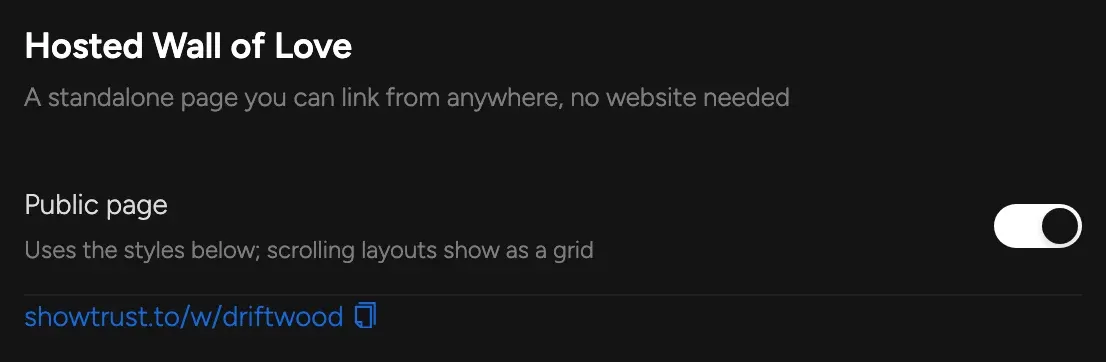
Public page on or off
Running several projects? Copy design from another project at the top of the editor pulls in its theme, layout, card style, palette and sizing — review the preview, then save.
Display options#
Besides ratings, dates and the CTA button, you can choose to show video testimonials (they play inline, one at a time), show source (“via G2”, “via X” on imported testimonials), and show only these tags.
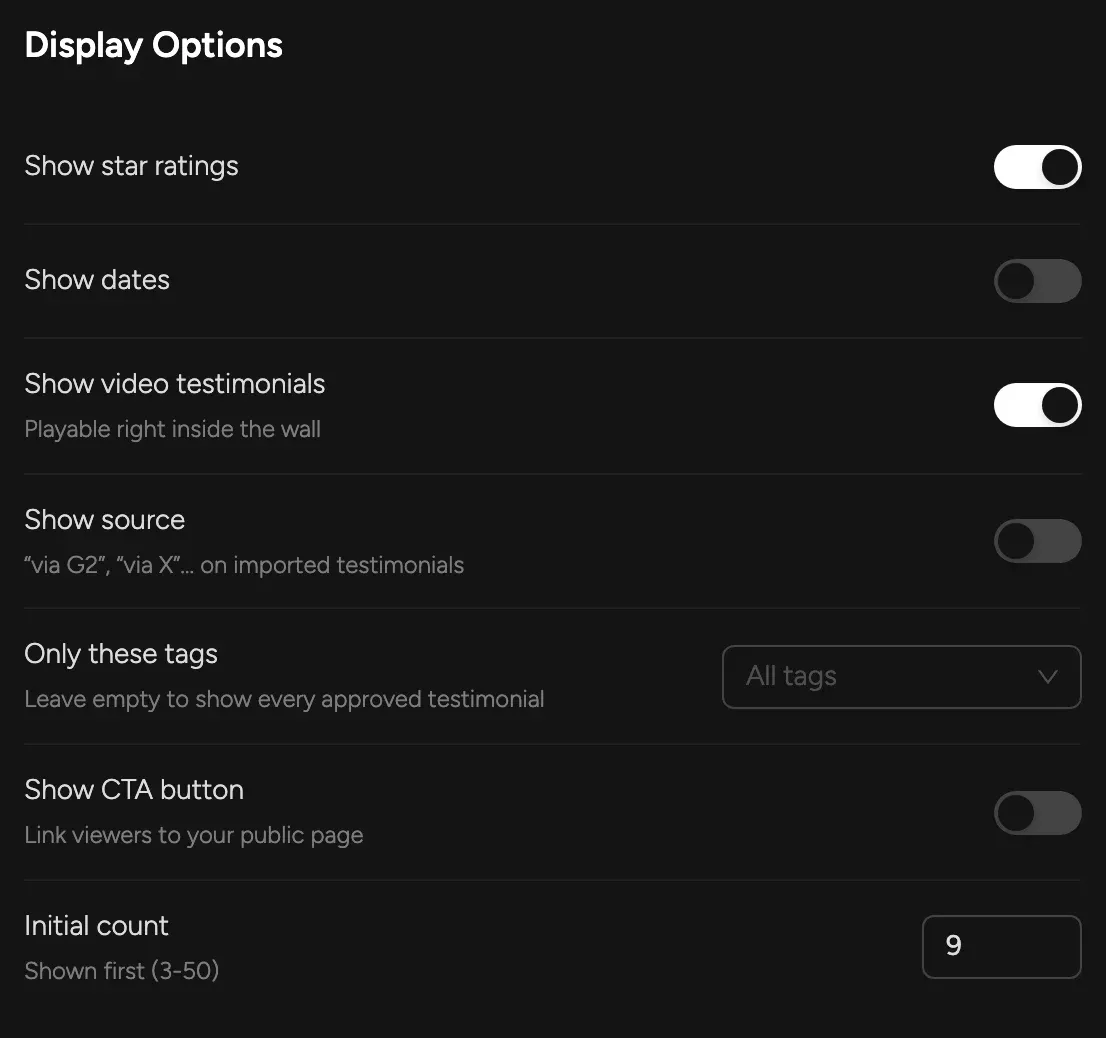
Show star ratings — each testimonial's ratingShow dates — when each testimonial was writtenShow CTA button — a button under the wall linking to your testimonial page, so visitors can add their ownInitial count — how many show before a “Show all” button (3–50)On the Free plan there's also Show ShowTrust credit, a small “Wall of love by ShowTrust” link under the wall. On Pro the credit is always off (white-label).
Card style#
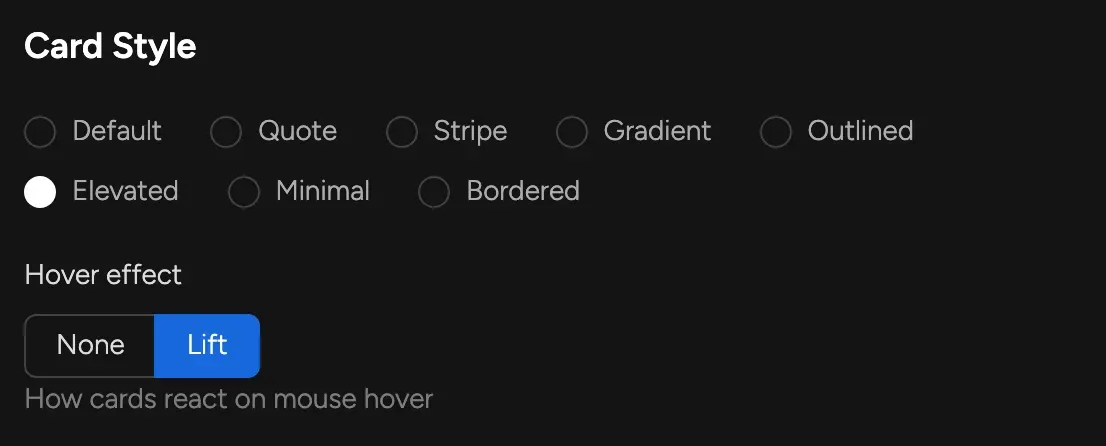
Hover effect — None, or Lift (cards rise slightly under the mouse)Palette#
The accent colour used by card decorations (stripes, gradients, quote marks): Neutral, Indigo, Emerald, Amber, Rose or Sky.

Size & spacing#
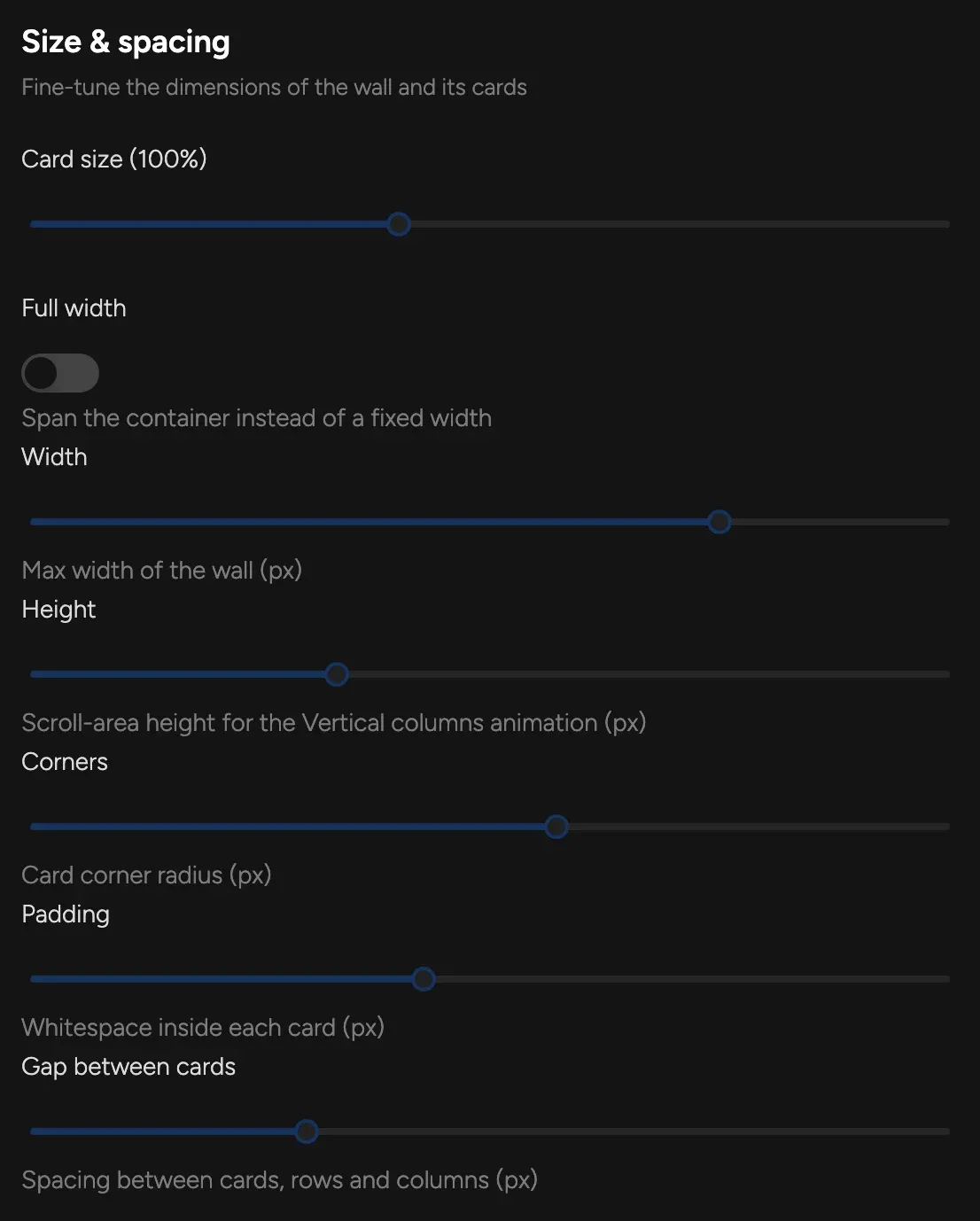
Card size — scales text, avatars and cards (80–130%)Full width — span the full width of the containerWidth — maximum width of the wall (600–1400 px)Height — visible height for scrolling layouts (400–1000 px)Corners — card corner radius (0–28 px)Padding — space inside each card (12–40 px)Gap between cards — (8–48 px)Embed code#
At the bottom of the editor are the two snippets you paste into your site. The script loads the widget (about 5 kB compressed, no iframe); the container marks where the wall appears. You only paste them once — every later change in the dashboard shows up without touching your site again.
Add both to the page that shows the wall, with the container exactly where the wall should go. If the script runs on a page that has no container, it adds the wall to the end of that page — so don't put the script in a layout shared by every page (a root layout, _app, a site-wide header) unless every one of those pages also has the container.
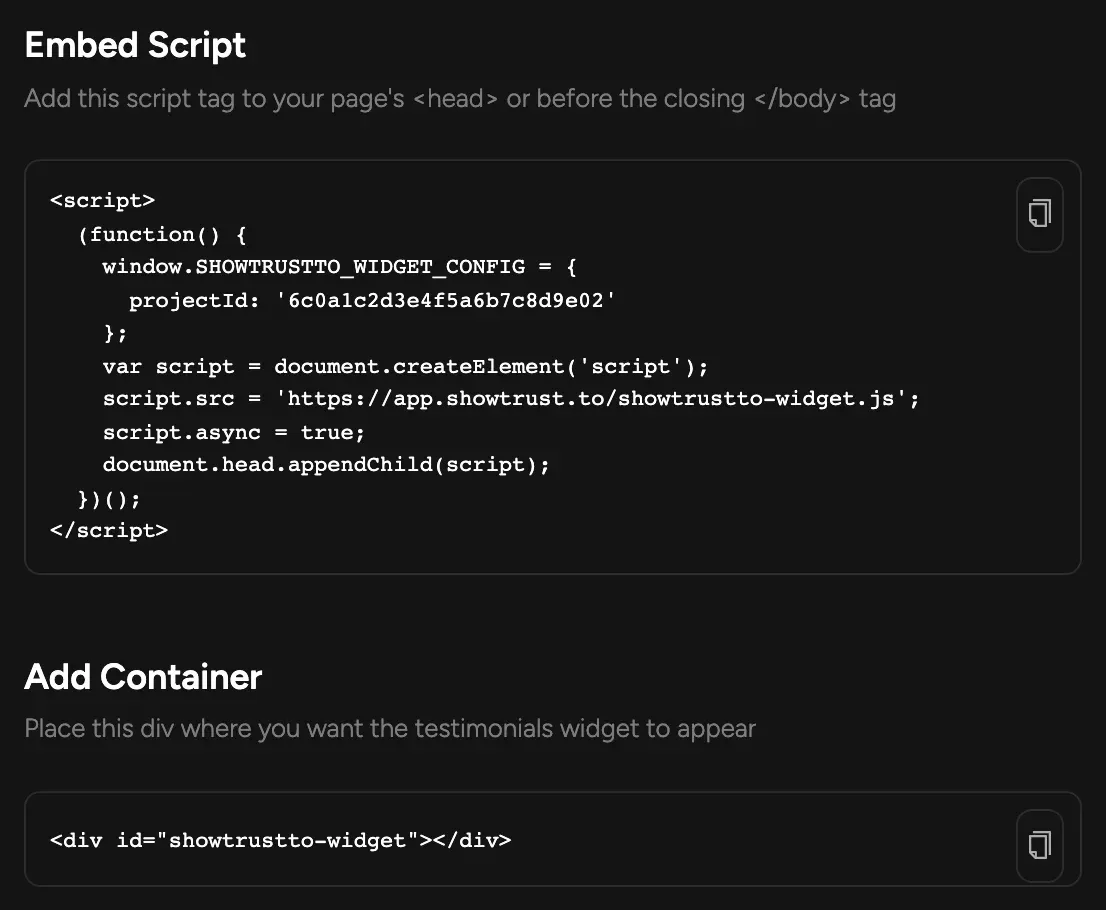
Framework-specific steps: Next.js (App Router), Next.js (Pages), Vite + React, Astro, plain HTML. Or let your AI agent do it: Agent Quickstart.
Embed options#
window.SHOWTRUSTTO_WIDGET_CONFIG accepts these keys. Only projectId is required; everything about how the wall looks is set in the dashboard.
projectId— your project's ID. It's filled in for you in the snippet the dashboard gives you.containerId— the ID of the element to render into. Defaults toshowtrustto-widget. If no matching element is on the page when the script loads, the wall is added at the end of the page (and moved into the container if one appears later).allowCssOverride—truerenders the wall straight into your page instead of inside its own style boundary (a shadow root), so your stylesheet can style it. Off by default, which keeps your site's CSS and the wall's from affecting each other.
On the Free plan with the credit switched on, the container snippet includes the “Wall of love by ShowTrust” link inside the <div>. Keep it inside the container and the wall shows it in place under your testimonials. Turn the credit off (or upgrade to Pro) and the container is just an empty <div>.
Single-page apps (Next.js, React Router, Vue…)#
Once loaded, the script watches the page: when client-side navigation renders a new container, the wall is drawn into it automatically, and it goes away with the page that held it. You don't have to reload anything on route changes.
Load the script from the page or component that renders the container rather than from your root layout, so a visitor who lands on another page first doesn't get the wall appended to it. In Next.js, put the two <Script> tags from the framework guide in the page that has the container instead of app/layout.tsx / _app.tsx. In a client-rendered React app, a small component does it:
JavaScript API#
The embed script exposes one method on window.ShowTrustWall (available once the script has loaded):
window.ShowTrustWall.mount()— renders the wall into the container if it is on the page and hasn't been rendered yet. Safe to call as often as you like; it never adds a second wall and never appends one to the end of the page. Returns a promise that resolves totrueif it rendered. You rarely need it, since new containers are picked up on their own, but it's there if you want to render at a precise moment.
The on-site widgets script has its own methods on window.ShowTrust.
Content Security Policy#
If your site sends a Content-Security-Policy header, add these sources to it (merge them into your existing directives rather than replacing them):
script-src https://app.showtrust.to— the embed script (andshowtrust.jsfor on-site widgets). The dashboard snippet is an inline<script>, so also give it your nonce (<script nonce="…">) or allow its hash.connect-src https://api.showtrust.to— the wall's content, your on-site widget settings, and view/click analytics.style-src 'unsafe-inline'— the wall and on-site widgets ship their CSS as inline<style>tags and style attributes.img-src https: data:— avatars can come from anywhere your testimonials came from (uploads, X, imports), plus small inline SVG decorations.media-src https:— only if you show video testimonials. You can narrow it to the host in your videos' URLs.frame-src https://showtrust.to— only for the on-site widgets' testimonial form pop-up. The wall itself uses no iframe.
Widget preview#
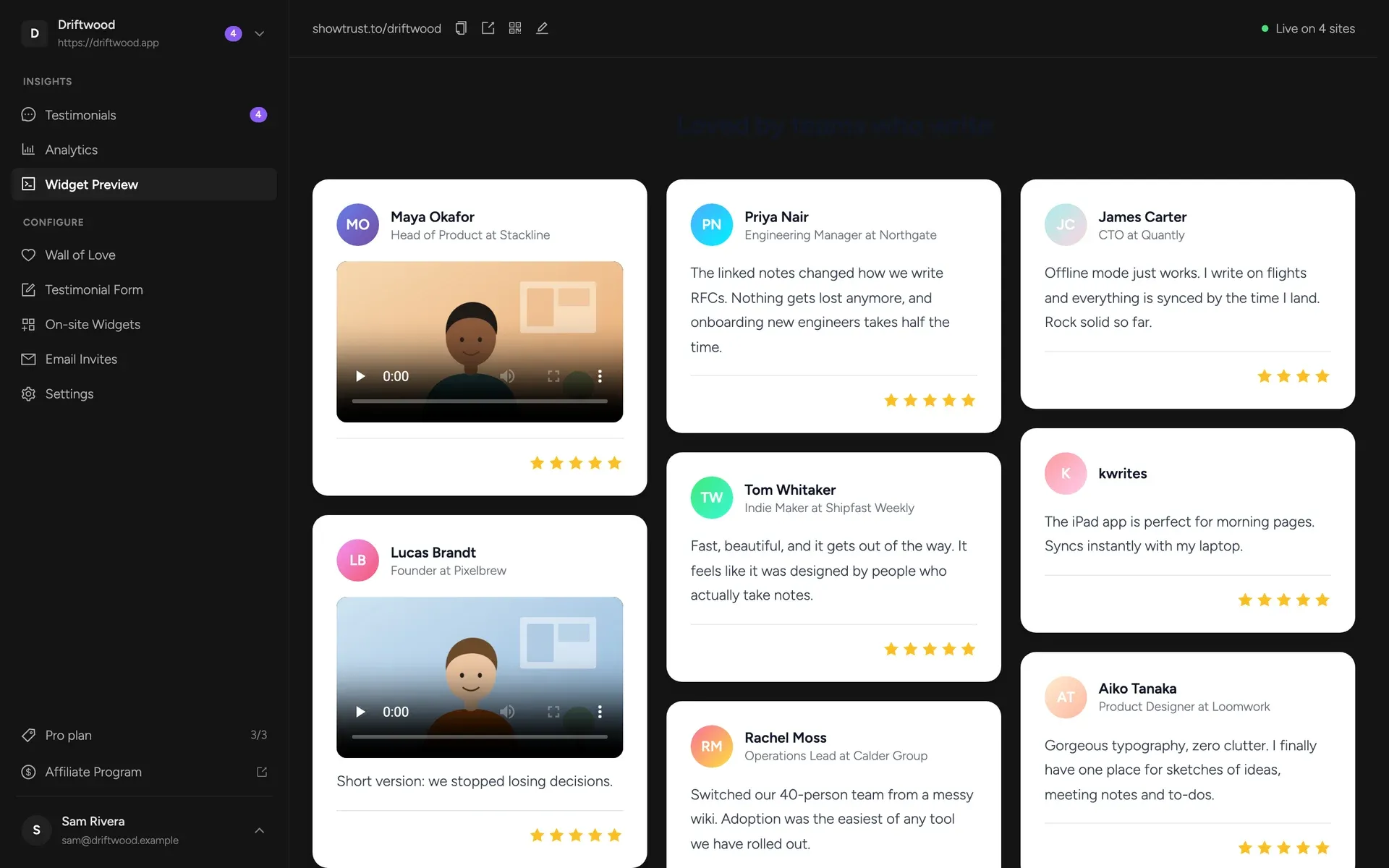
Widget Preview renders your saved wall with your real approved testimonials — pinned first — exactly as visitors will see it.