June 12, 2026
·
Updated November 6, 2026
·
14 min read
Testimonial Approval Workflow: Steps, Checks and Templates
A practical testimonial approval process for small teams: steps, review checklist, approval email template, edit rules, tags and removal. General guidance, not legal advice.

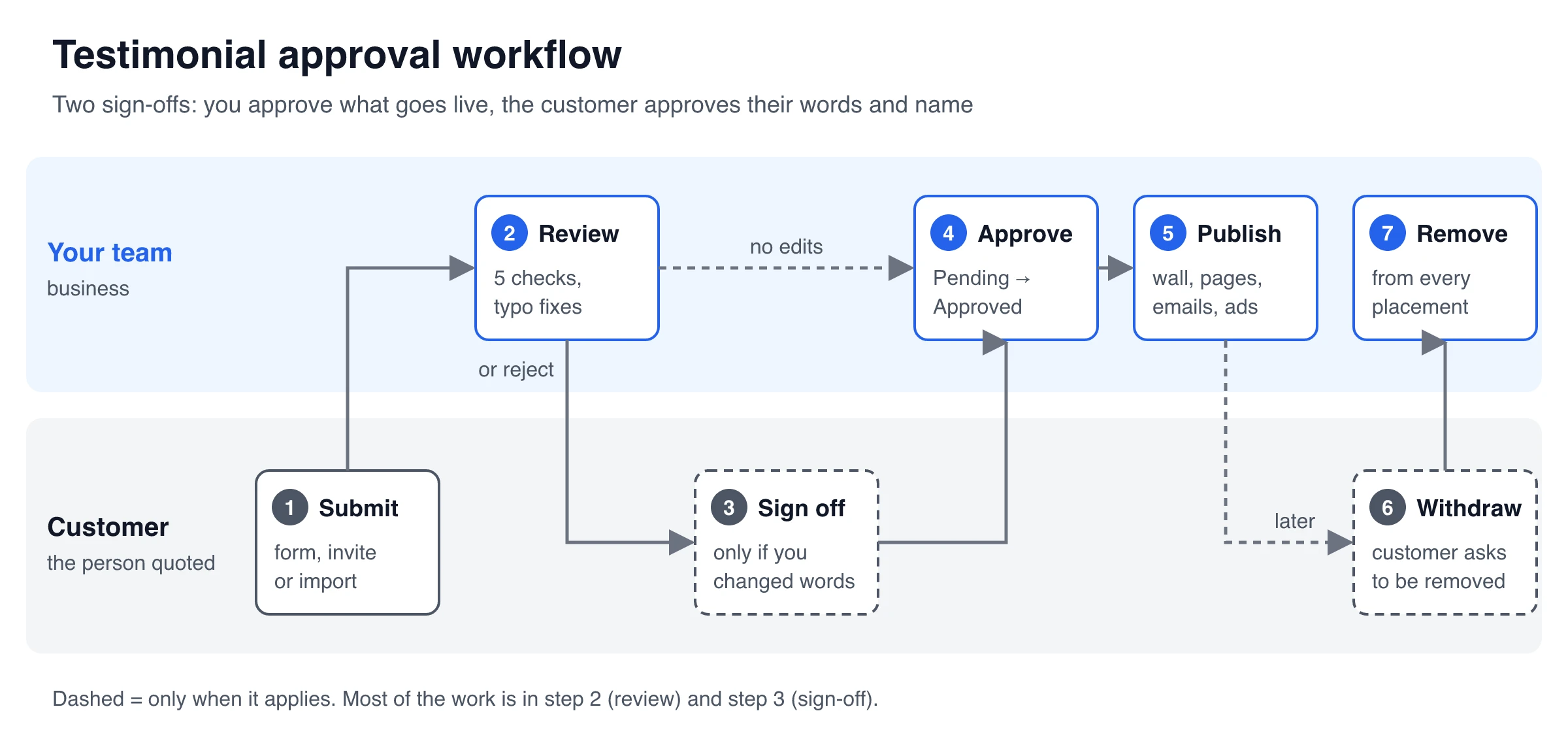
A testimonial approval workflow is the path a customer quote takes from submission to your website: collect it, review it against a short checklist, get the customer's sign-off if you changed the wording, approve it, publish it, and remove it everywhere if the customer later withdraws consent. Two different approvals happen along the way. You approve what goes live (is it accurate, honest and safe to publish?), and the customer approves their words and their name (did I say this, and may you use it?).
This guide covers both: a diagram of the workflow, the checks to run before you approve, a copy-paste approval email with consent wording, rules for editing quotes, a tagging scheme that keeps approved testimonials reusable, and a removal checklist. It is written for small teams where one person does the approving.
What is a testimonial approval workflow?
It is the set of steps, and the person responsible for each, between “a customer said something nice” and “that sentence is on the pricing page.” Without one, quotes get published with a wrong job title, an edit the customer never saw, or a claim nobody can back up.
The two approvals answer different questions, so keep them apart:
| Your approval (curation) | The customer’s sign-off (permission) | |
|---|---|---|
| Question it answers | Should this go live? | Are these my words, and may you use my name? |
| Who gives it | Whoever owns your testimonials | The person quoted |
| When it’s needed | Every testimonial | When you edit, excerpt, add a name, photo or logo, or use it somewhere they didn’t expect |
| Proof to keep | The approved status in your tool | A ticked permission box or a written reply |
One useful distinction from larger content teams: gates block publishing (no permission, a claim you can’t support, someone else’s personal data), while flags only add context (“great for the pricing page,” “needs a shorter excerpt”). Treat only the gates as reasons to wait. Everything else can ship and be improved later.
Testimonial approval process, step by step
The steps below follow the diagram; the last one combines the customer’s request and your removal (diagram steps 6 and 7). A solo founder can run them in a few minutes per testimonial. A team adds more reviewers to step 2, not more steps.
Step 1: Collect everything into one queue
Testimonials arrive through a collection form, email replies, DMs, review sites and sales calls. Route all of them into one place with a single status field, even if that place is a spreadsheet. A quote that lives only in someone’s inbox can’t be reviewed, found or removed later.
Ask for the details you will need at approval time while the customer is still engaged:
- Name, job title and company, exactly as they want them shown
- Whether you may use their photo and company logo
- Permission to publish, as a checkbox on the form (for example, ShowTrust’s form has an optional or required permission checkbox and records whether each person ticked it)
- How to reach them if you want to confirm an edit
If you collect from non-English speakers, approve the testimonial in the language it was given. Translating a quote and publishing it as their words is an edit that needs their sign-off.
Step 2: Review against five checks
Read every new submission once against the checklist in the next section: accuracy, permission, claims, connections and privacy. This is where most of the approval work happens. Decide one of three outcomes: approve as is, approve after a light edit (go to step 3), or reject.
Reject for consistent reasons such as spam, tests, abuse, other people’s personal data or content unrelated to your product. Don’t reject simply because a testimonial is lukewarm, and don’t claim your published selection represents all the feedback you received.
Step 3: Get the customer’s sign-off on edits
Skip this step if you publish the testimonial exactly as submitted, with only obvious typo fixes, under the name and details the customer gave you.
Ask for sign-off when you:
- Shorten it to an excerpt or headline
- Rephrase, reorder or merge sentences
- Translate it
- Add a title, company name, photo or logo they didn’t supply
- Plan to use it in paid ads, a case study or a sales deck when they agreed to “the website”
Send the exact final version, not a description of it. The email template further down does this in one message.
Step 4: Approve
Agree in advance what “approved” means so the decision is the same on a busy day: it passes all five checks, permission is on record, and any edit beyond typos has the customer’s sign-off.
Name one owner for this click. In most testimonial tools approval is a single status change, so the risk is not the click itself but two people assuming the other one checked. Some tools offer auto-approval; Senja, for example, lets you auto-approve form submissions and treats CSV and manual imports as approved by default (as of November 2026). Auto-approval saves clicks but skips steps 2 and 3, so use it only for sources you have already vetted.
Step 5: Publish and note where it went
Embedded widgets update when the status changes. Copies don’t: a quote pasted into a landing page, a sales deck, an email sequence or an ad has to be tracked by hand. Add a “used in” note or tag each time you place a testimonial outside your widget. You will need that list in step 6.
Step 6: Remove it when the customer asks
Customers change jobs, leave companies or simply change their minds. Treat a withdrawal request as a priority task with a checklist (see the removal section below), confirm in writing when it’s done, and make sure the quote can’t quietly come back through a re-import.
What to check before approving a testimonial
This table merges the checks most teams end up with. Keep it next to your queue.
| Check | What to verify | Red flag | Quick fix |
|---|---|---|---|
| Accuracy | Name, title, company, product or plan mentioned | Old job title, misspelled company | Confirm with the customer or their profile |
| Permission | Ticked permission box or written yes | Quote copied from a DM or call with no consent | Send the approval email first |
| Claims | Numbers, outcomes, “best,” “guaranteed,” health or financial results | A dramatic result most customers won’t get | Disclose typical results, pick a different quote, or skip it |
| Connections | Employee, investor, friend, affiliate, reward for the review | A connection readers wouldn’t expect, not disclosed | Disclose it next to the quote |
| Privacy | Other people’s names, client details, internal figures | “Thanks to Jane in billing for fixing our invoice” | Trim, with the customer’s sign-off |
A few rules behind the table, from the FTC’s endorsement guides (US; other countries have similar consumer-protection rules):
- Claims: a customer’s result on a key feature is read as what people can generally expect. If you can’t back that up, the guides call for a clear disclosure of generally expected results.
- Connections: a connection between the customer and the seller that readers wouldn’t expect and that could affect how much they trust the quote must be disclosed clearly. If you offer a thank-you reward for testimonials, the FTC’s endorsement FAQ says you can’t make the incentive depend on the review being positive.
- Curation: choosing your best testimonials for a homepage is normal. Hiding negative feedback while implying your page shows all of it is not. The endorsement guides say not to suppress, organize or edit customer reviews in a way that distorts what customers think, and the FTC’s consumer review rule bars misrepresenting suppressed reviews: implying that the reviews a page displays are all or most of those submitted while hiding some for their rating or negative sentiment. The rule lists neutral reasons to withhold a review, applied to every review alike (fake, abusive, off-topic, contains someone else’s personal information). That’s the line between curation and review gating.
A simple way to sort claims during review:
- Experience (“easy to set up,” “support was quick”): approve if accurate.
- Performance (“cut our churn by half”): check it’s accurate for this customer and, if it isn’t typical, disclose what customers generally achieve.
- Comparative (“better than X”): be careful; you are now making a claim about a competitor.
- Compliance or safety (“HIPAA-ready,” “cured my back pain”): don’t publish unless you can substantiate it independently.
This is general guidance, not legal advice. Regulated industries (health, finance, legal services) usually need their own review.
Can you edit a testimonial before approving it?
Yes, lightly. The FTC’s guides say an endorsement doesn’t have to use the customer’s exact words unless you present it as their exact words, for example in quotation marks, and that it may not be reworded to distort their opinion or experience. Most testimonials are shown as quotes, so treat the text as theirs.
| You can change | You shouldn’t change |
|---|---|
| Spelling, punctuation, capitalization | Numbers, outcomes or timeframes |
| Filler words and repeated phrases | The strength of their opinion (“good” to “amazing”) |
| Obvious grammar slips | Context that limits a claim (“for our small team,” “in the first month”) |
| Line breaks and formatting | Product names, competitor mentions or anything they didn’t say |
Two habits keep edits safe:
- Keep the original. Store the raw submission next to the published version so you can show how one became the other. Editing over the only copy removes your proof.
- Re-confirm meaningful edits. Anything in the right-hand column, and any excerpt that drops a qualifier, goes back to the customer for a yes. If you want stronger wording, ask them for it instead of writing it.
Light editing also protects authenticity: over-polished quotes all start to sound like your own marketing copy, and readers notice.
Testimonial approval email template
Use one email for every sign-off so each approval looks the same and can be found later. It works whether you edited the quote or just want explicit permission for a new use.
Subject: Quick approval: your testimonial for [Company]
Hi [First name],
Thanks again for your kind words about [product]. Here is exactly how we’d like to show them:
“[Final quote, word for word]”
[Name], [Job title], [Company]What changed from your original: [e.g. “shortened to the first two sentences” or “no changes”]
Where we’d use it: [our website / pricing page / emails / sales presentations / ads]
Please reply with one of these:
- APPROVE: you’re happy for us to use it as shown
- EDIT: followed by the wording you’d prefer
- ANONYMOUS: use it without your name, as “[role] at a [type of company]”
Photo and company logo: may we show them next to your quote? (yes / no)
You can ask us to remove it at any time by replying to this email.
Thanks,
[Your name]
The exact final text means the customer approves what will actually be published; the change note saves them comparing versions; one-word replies are easy to send from a phone and easy to search for later; and naming the uses keeps “the website” from quietly turning into paid ads.
Save the reply with the testimonial: a link to the thread, a PDF of it, or a note in your CRM. Keep it for as long as you use the quote. For when an emailed yes is enough versus when a formal release makes sense, see the limits of testimonial release forms; for how to ask in the first place, see how to get permission to use testimonials. If replies don’t come back, these approval-stalling fixes cover reminders and follow-ups.
How to organize approved testimonials with tags
Approval gets a testimonial live once. Tags let you reuse it. Tag at approval time, while you still remember the context, and keep the list short enough that everyone applies it the same way.
| Tag group | Example tags | Use it to |
|---|---|---|
| Topic or use case | onboarding, support, pricing, integrations | Match a quote to the objection a page is answering |
| Customer type | agency, saas, ecommerce, enterprise | Show prospects someone like them |
| Placement | homepage, pricing-page, checkout, sales-deck | Track where it’s in use |
| Restriction | no-logo, website-only, first-name-only | Stop a quote being used beyond its permission |
| Strength | headline, supporting | Pick the lead quote for a hero section |
Rules that keep tags useful:
- Lowercase, singular, hyphenated. “pricing-page,” never “Pricing Page” and “pricing pages.”
- Start with 10 to 15 tags. Add one only when you’ve needed it twice.
- Make restrictions tags too. A “website-only” tag is visible every time someone filters, which a note buried in an email is not.
- Review once a quarter. Merge near-duplicates, retire unused tags and check testimonials from customers who have since left (see below).
If quotes are used outside your testimonial tool, keep a small tracker with one row per testimonial: customer, approved wording, permission proof (link), allowed uses, where it’s placed, date approved and date last checked. If any column is empty, that row has a problem.
Removing a testimonial when consent is withdrawn
When a customer asks you to take their testimonial down, work through every place it could be:
- Your testimonial tool: reject or delete it so embedded widgets, popups and hosted pages drop it.
- Single-testimonial embeds and images: quote cards, social images and one-off embeds on pricing or checkout pages.
- Hard-coded copies: landing pages or site sections where the quote was pasted into the HTML.
- Email: welcome sequences, newsletters and sales templates.
- Sales and paid: decks, one-pagers, proposals and ad libraries.
- Case studies and press kits.
Then reply to confirm it’s done, and keep a short note (who, what, when it was removed) so nobody re-adds it from an old CSV or import.
Withdrawal isn’t the only reason to remove a quote. The FTC’s guides say that when an ad presents someone as a user of the product, you may keep running it only while you have good reason to believe they still use it (section 255.1, linked above). A yearly check of testimonials from customers who have churned, changed jobs or switched products catches the ones that have quietly gone stale.
Testimonial approval in ShowTrust
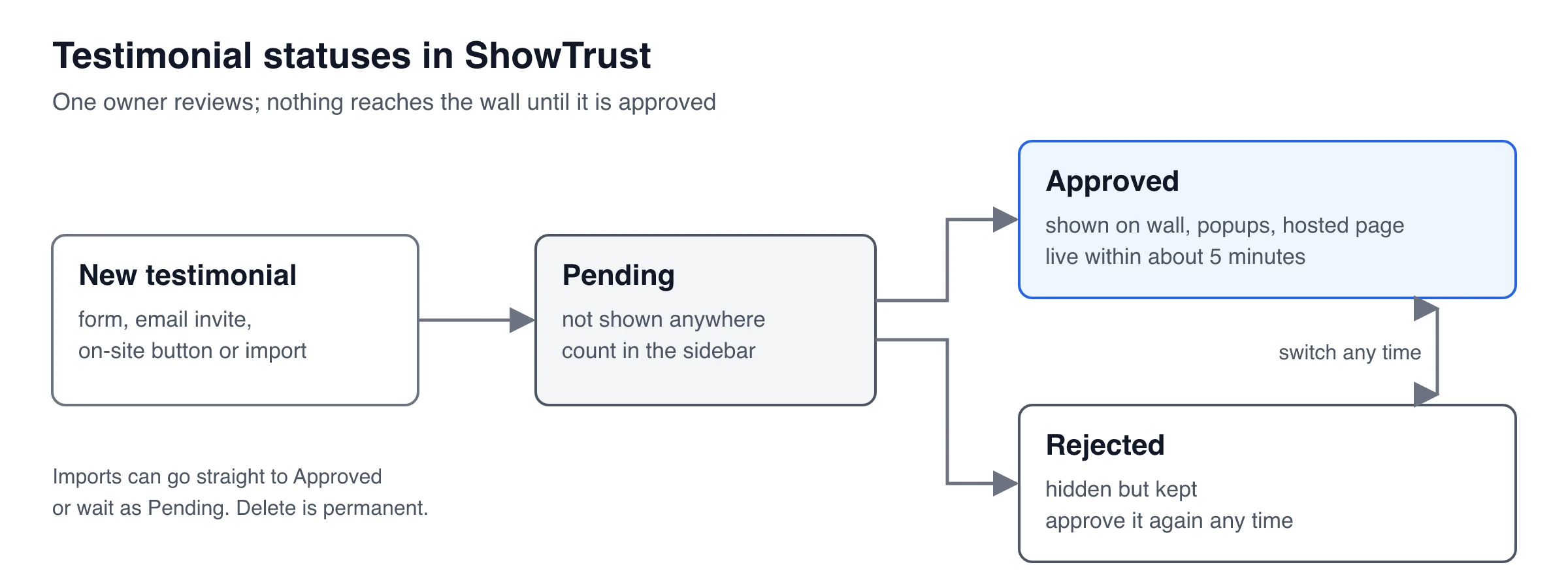
ShowTrust puts a review step between every submission and your wall. Here is how the workflow above maps to it, and where it stops.
What it does
- Queue: submissions from the collection page land in a Pending tab and aren’t shown anywhere. The sidebar shows how many are waiting, and you get an email for each new testimonial (on by default). Slack or Discord alerts and signed webhooks (
testimonial.created,testimonial.approved) are set up in notifications. - Decide: approve, reject, edit or delete. Approved testimonials appear on your embedded wall within about five minutes. Rejected ones are hidden but kept, and you can switch any status back later.
- Curate: pin the strongest testimonials to the top, fix typos (editing is meant for clean-up, not changing meaning), add tags, filter by tag or by video vs text, and show only certain tags on a wall.
- Permission: the form’s checkbox can be off, optional or required, with your own wording. Each testimonial records whether it was ticked, and the CSV export includes that flag along with tags and source.
- Imports: testimonials pasted from G2, Capterra, Trustpilot or emails, or imported from X, the App Store or a CSV, go through a review step where you approve them or leave them pending.
What it doesn’t do
- No team approval. There’s one login per account: no seats, roles, approver assignment or multi-step approval chains. If two people must sign off, agree it in Slack or a shared doc before the owner clicks Approve.
- No customer sign-off flow. ShowTrust doesn’t email customers to approve an edited quote; send the template above yourself.
- No audit trail or version history. Keep the original wording and approval email outside the tool if you need a record.
- Permission is a yes/no checkbox. It doesn’t record channel-by-channel consent; use restriction tags for that.
- No identity checks. ShowTrust doesn’t verify who submitted a testimonial.
For a single owner curating a wall, that covers steps 1, 2, 4 and 5 inside one dashboard. See curation features for screenshots. Share links and single-testimonial embeds from share testimonials stop showing a testimonial once it’s no longer approved, but downloaded quote images are separate copies, so add them to your removal checklist.
A minimal setup you can run this week
- Pick one queue and route every testimonial source into it.
- Turn on a permission checkbox in your collection form, and ask for name, title and photo preferences up front.
- Name one approver and paste the five-check table next to the queue.
- Save the approval email as a template, and use it whenever you edit or reuse a quote somewhere new.
- Create 10 to 15 tags, including restriction tags, and apply them when you approve.
- Put a yearly reminder in your calendar to recheck old testimonials and remove stale ones.
Frequently Asked Questions
- Do I need the customer's permission to publish their testimonial?
- Get it in writing whenever you can. A ticked permission box on your collection form or a reply to an approval email is a simple record. Ask again if you edit the wording or want to use the quote somewhere new, such as paid ads. Rules vary by country and industry, so check with counsel if you work in a regulated field.
- Can I fix grammar in a testimonial?
- Yes. Fixing spelling, punctuation and obvious grammar slips is normal. Don't change numbers, outcomes, the strength of the opinion or any context that limits a claim. If an edit goes beyond typos, send the final version to the customer for approval before publishing.
- Can I show only my best testimonials?
- Choosing your strongest testimonials for a page is normal curation. What creates risk is implying your page shows all of your feedback when you have hidden negative reviews, or tying a reward to a positive review. Reject submissions for consistent reasons such as spam, abuse, off-topic content or someone else's personal data.
- Is an email reply enough to approve a testimonial?
- For most small businesses a clear written reply works, as long as it shows the exact text, the name to display and where you will use it. Save the thread with the testimonial. Larger campaigns, video shoots and regulated industries often use a formal release instead.
- What should I do if a customer asks me to remove their testimonial?
- Remove it from your testimonial tool first so widgets update, then check every copy: landing pages, quote images, emails, sales decks, ads and case studies. Confirm to the customer in writing and keep a short note so the quote isn't re-imported later.
- Can more than one person approve testimonials in ShowTrust?
- No. ShowTrust has one login per account and no team roles or approval chains. Approval is the owner moving a testimonial from Pending to Approved. Teams that need several sign-offs can agree in Slack or a shared document first, then the owner approves.
ShowTrust’s Free plan includes the Pending → Approved queue, tags and a permission checkbox for one project with unlimited testimonials; Pro ($4.99/month or $49.99/year per project slot) adds video testimonials and white-label (the Free credit link can also be switched off). Compare plans.
Written by
ShowTrust
Notes from the ShowTrust team on collecting testimonials and building authentic social proof.
Share: