September 14, 2026
·
Updated November 6, 2026
·
15 min read
Display Google Reviews on Your Website: 7 Ways, 9 Checks
Seven ways to show Google reviews on a website, from free Google options to APIs and widgets, plus nine checks on Google's display, caching and review-snippet rules. Prices as of November 2026.

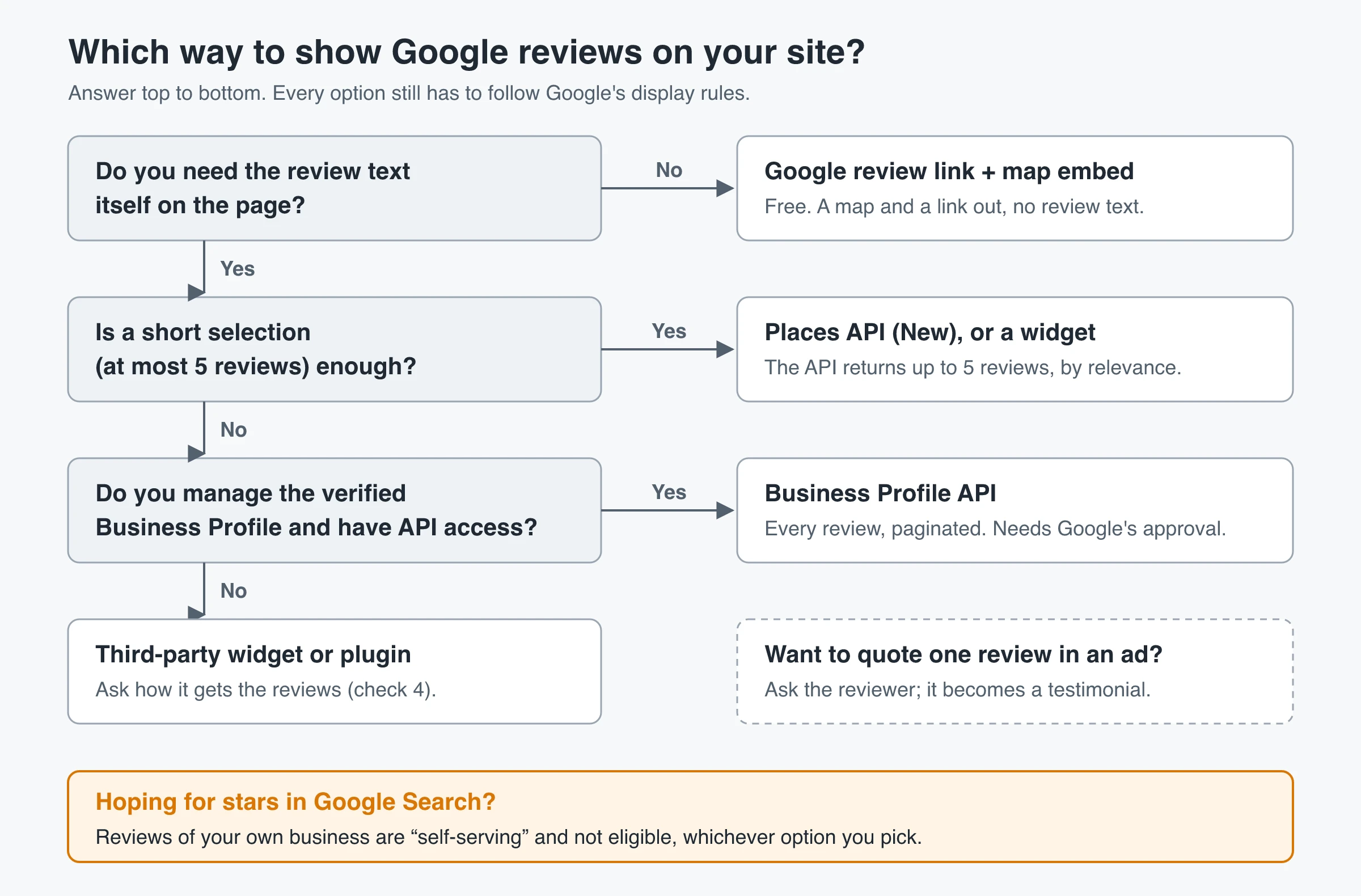
The quickest free way to display Google reviews on your website is a link to your Google reviews plus a Google Maps embed of your listing, but neither puts review text on the page. To show the reviews themselves, use a widget such as Elfsight, EmbedSocial or Trustindex, or build a block on Google's Places API, which returns at most five reviews per place. Showing every review takes the Business Profile API, and that only works for a verified profile you manage.
If the reviews come through Google's APIs, directly or through a vendor, Google's rules come with them: credit each author, link each review back to Google Maps, say how the reviews are sorted, and don't copy or store the text. And embedding your own Google reviews will not earn star ratings in search results. Below are the seven ways, then nine checks to run before you publish.
7 ways to display Google reviews on your website
Google gives you a review link, a map embed, an experimental UI kit and two APIs. None of them is a stable, no-code widget that lists your reviews, which is why many sites end up with a third-party tool. Here is how the options compare.
| Method | Shows review text? | Reviews shown | Cost (Nov 2026) | Skill needed |
|---|---|---|---|---|
| 1. Link to your Google reviews | No | None (links out) | Free | None |
| 2. Google Maps embed | No (map and place card) | None | Free | Paste an iframe |
| 3. Places UI Kit Place Details element | Yes | Not stated in Google’s docs | 10,000 loads/month free, then $1.00 per 1,000 | Some JavaScript |
| 4. Places API (New) custom block | Yes | Up to 5 per place | 1,000 requests/month free, then $25 per 1,000 | Developer |
| 5. Business Profile API | Yes | All, paginated | Needs Google’s approval | Developer |
| 6. Third-party widget or plugin | Yes | Depends on the plan | Free tiers; paid from $5/month billed yearly | None |
| 7. Quote reviews with permission | Yes, as testimonials | Any you get permission for | Free | None |
1. Link to your Google reviews (free)
This is the only option that needs no code and no account beyond your Business Profile. Google’s help page on how to create a review link or QR code gives the steps:
- Open your Business Profile from business.google.com.
- Select Read reviews, then Get more reviews.
- Copy the link, or right-click the QR code and save it. Google says review QR codes can only be generated in a computer browser, not on a phone.
- Add it to your site as a button, for example “Review us on Google” in the footer, on the contact page or in your order confirmation email.
That link opens the review form. For a “Read our reviews on Google” button, link to your listing instead: find your business in Google Maps, click Share and copy the link.
One rule to keep in mind: Google’s help page says offering free or discounted goods or services in exchange for reviews is prohibited.
2. Embed your Google Maps listing (free)
Google Maps can generate an iframe for your listing:
- Open Google Maps on a computer and search for your business.
- Click Share, then Embed a map, and pick a size.
- Click Copy HTML and paste it into an HTML or embed block on your page.
Visitors see a map with your pin and a small place card, which typically includes your star rating and review count and links to the full listing. It does not list individual reviews.
Developers can build the same thing with the Maps Embed API in place mode, passing your place ID. Google says all Maps Embed API requests are free with unlimited usage; you still need an API key from a Google Cloud project.
3. Use Google’s Place Details element (Places UI Kit)
Google’s Places UI Kit is the closest thing to an official reviews component. Its Place Details element renders a place’s details, including opening hours, website and reviews; the Advanced version adds review search and filters.
- Status: Google labels the kit Experimental (pre-GA), which means limited support and possible breaking changes.
- Setup: it runs on the Maps JavaScript API, so you need a Google Cloud project, an API key and some JavaScript.
- Cost: it is billed per element load. Google’s price list shows the Places UI Kit SKU with 10,000 free loads a month, then $1.00 per 1,000. The Advanced element bills to Places UI Kit Pro: 5,000 free, then $5.00 per 1,000.
- No map required: Google’s service terms let you use the UI Kit with or without a map.
- Review count: the docs don’t say how many reviews the element shows, so test it with your own place ID before you design around it.
4. Build a reviews block with Places API (New)
If you want full control of the design, call Place Details (New) and render the reviews yourself:
- Create a Google Cloud project with billing enabled, turn on Places API (New), and create an API key restricted to that API.
- Find your place ID with Google’s Place ID Finder.
- Request only the fields you need. Place Details (New) returns an error without a field mask, and there is no default field list.
- Render each review with the attribution, link and notice described in checks 6 to 8.
curl "https://places.googleapis.com/v1/places/YOUR_PLACE_ID" \
  -H "X-Goog-Api-Key: YOUR_API_KEY" \
  -H "X-Goog-FieldMask: displayName,rating,userRatingCount,googleMapsUri,reviews"
Each review comes back with its text, star rating, publish time, author attribution (name, profile link and photo) and its own googleMapsUri. Make the call from your server so the key stays private, but don’t save the response (check 5).
The field mask also sets the price. On Google’s Maps Platform price list, asking for rating and userRatingCount without reviews bills Place Details Enterprise: 1,000 free requests a month, then $20 per 1,000. Adding reviews bills Place Details Enterprise + Atmosphere: 1,000 free, then $25 per 1,000.
5. Show every review with the Business Profile API
The only official way to get every review is the Business Profile API’s reviews.list method, and it only works for a business you manage. Google’s docs say the operation “is only valid if the specified location is verified.”
Getting access takes more than an API key. According to Google’s Business Profile API prerequisites, you need to:
- Manage a Business Profile that has been verified and active for 60+ days.
- Have a website that represents the business on the profile.
- Request access through Google’s contact form (“Application for Basic API Access”). Until Google approves the project, its quota shows 0 queries per minute; after approval it shows 300.
Once you’re in, reviews.list returns up to 50 reviews per page with a nextPageToken for the next page, and can sort by rating or by most recently updated. It uses OAuth with the business.manage scope, so it suits a server-side job for your own business. It also has its own terms, separate from the Places API policies behind checks 6 to 8; read them before you build.
6. Use a Google reviews widget or WordPress plugin
Most “how to embed Google reviews” guides come down to this: connect or search for your business in the vendor’s dashboard, pick a layout, then paste the embed code (or a WordPress shortcode) into your page. Three widely used options, with prices from their own pricing pages as of November 2026:
| Tool | Free plan | Cheapest paid plan | Worth knowing |
|---|---|---|---|
| Elfsight Google Reviews | 1 widget, 200 views/month, Elfsight branding | Basic: $5/month billed yearly, 3 widgets, 5,000 views/month | Going over the monthly views limit temporarily deactivates the widget |
| EmbedSocial | 1 source, 500 views/month, sync every 24 hours | Pro: $29/month ($24/month billed yearly), 3 sources, 5,000 views/month, sync every 3 hours | At the views limit, widgets stop showing until the count resets |
| Trustindex Widgets for Google Reviews (WordPress plugin) | 1 widget, 1 Google profile, up to 10 reviews, manual refresh every 10 days | Single: $65/year for 1 company, unlimited websites (Pro: $125/year for 5 companies), per Trustindex’s pricing page | Free version needs no Google API key; it fetches reviews from your public profile and stores them in your WordPress database. 1,000,000+ active installs |
On WordPress, install the plugin from Plugins > Add New, connect your business, and place the widget with its block or shortcode. On Wix, Squarespace, Webflow or Shopify, use the platform’s custom code or embed block and paste the vendor’s snippet. If you’re unsure whether a script or an iframe embed fits your builder, the guide on how to embed testimonials on your website covers both, and this roundup of social proof widget tools compares wider review-feed widgets.
Before you pick any vendor, run checks 4 and 5 below.
7. Quote individual reviews with permission
Copying a review from Google Maps into your page is the “free” method many guides suggest. It has three problems. The text belongs to the reviewer: Google’s Terms of Service say “Your content remains yours.” If you pull reviews through Google’s APIs, the Maps Platform terms bar copying and saving them. And a pasted copy goes stale with no link back to the original.
The clean version turns a review into a testimonial:
- Pick a review from a customer you can contact directly (an email from your records, not a public reply).
- Ask whether you may quote it, with their name, on your site and in marketing.
- Keep their written yes and the date, and quote them word for word.
- Label the source, for example “Originally posted as a Google review, March 2026.”
The steps to get permission to use a testimonial cover consent wording and what to do if someone later asks you to remove their quote.
9 checks before you show Google reviews on your site
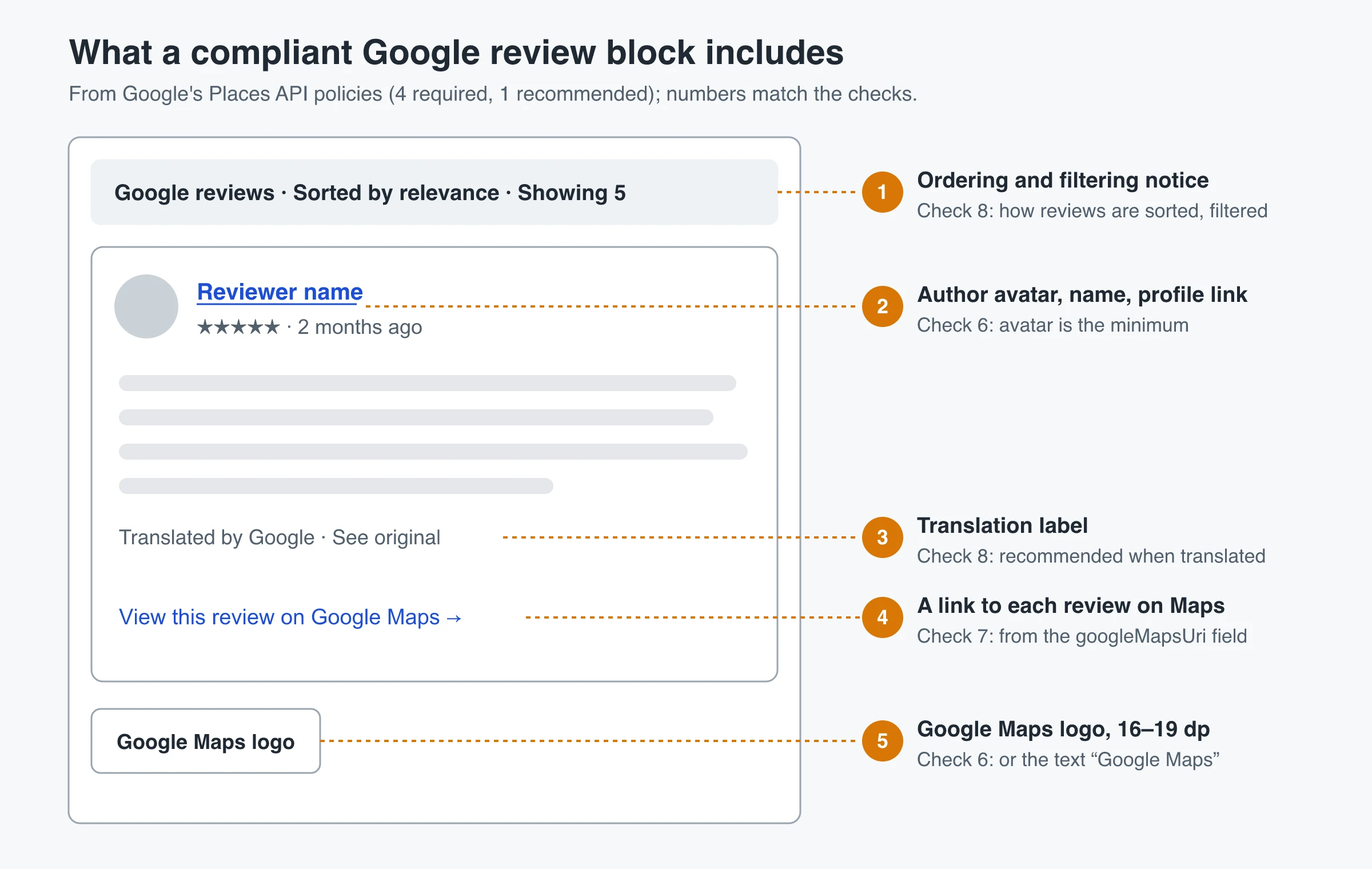
Checks 1 to 4 and 9 apply whatever method you chose above. Checks 5 to 8 are Google’s rules for reviews pulled through its APIs, whether you call them yourself or a widget does it for you; 6 to 8 come straight from Google’s Places API policies.
Check 1: Match the method to your goal
Decide what the block is for before you pick a tool:
- On-page trust: a review link, map embed or widget is enough.
- A complete, current feed: only the Business Profile API gives you every review, and only for your own verified profile.
- Quotes for ads, landing pages or emails: get the reviewer’s permission (method 7).
- Stars in Google Search: none of these methods gets you there (check 9).
Check 2: Plan around the five-review limit
Google’s Places API reference describes the reviews field as a list “sorted by relevance,” adding that “a maximum of 5 reviews can be returned.” You can’t page past those five.
- Five is fine for a “Top reviews” strip next to a booking or contact button.
- Five is not fine if you promise “all our reviews” or want the newest first. That needs the Business Profile API (your own verified profile) or a vendor whose source you’ve checked.
- Rating and count only? Request
ratinganduserRatingCountwithoutreviewsand show a summary line with a link to your listing.
Check 3: Price the API at your traffic
API pricing is per request, and because review content can’t be cached (check 5), a reviews block calls Google each time it renders. A simple way to estimate cost:
(monthly page views of the reviews block - free requests) ÷ 1,000 × price per 1,000
For example, 20,000 monthly views of a page that renders reviews through Place Details (New): (20,000 - 1,000) ÷ 1,000 × $25 = $475 a month, at the prices listed in November 2026. The same 20,000 loads of the Places UI Kit element would cost about $10 (10,000 free, then $1.00 per 1,000). Ways to keep it down:
- Show reviews on one or two pages, not in a site-wide footer.
- Load the block when visitors open a “Reviews” tab rather than on every page view.
- Use the rating and count alone where the text isn’t needed.
Many widget vendors price by monthly views instead, so the same traffic can push you past a free plan’s cap.
Check 4: Ask where the reviews come from
Any tool that shows Google reviews has to get them from somewhere. Ask before you sign up:
- “Which official Google API do you use: Places API or a Business Profile connection?” A clear answer is a good sign.
- “Do you read Google Maps pages directly?” Google’s Maps Platform terms say API customers “will not export, extract, or otherwise scrape Google Maps Content.” Scraped feeds also break when Google changes its pages.
- “Why can you show more than five reviews?” If the answer isn’t your own Business Profile connection, ask how.
If a vendor can’t answer plainly, choose another one.
Check 5: Don’t copy, store or rehost reviews
This check is about reviews that come through Google’s APIs. Rehosting means pulling that review content once, saving it in your own database, CMS or CDN, and serving it as if it were your content. The same Maps Platform terms list examples of what not to do, including “copy and save business names, addresses, or user reviews,” and a separate “No Caching” rule allows caching only where the Maps service-specific terms permit it.
What those service terms do allow:
- Place IDs are exempt from the caching rule, so you can store them; Google’s place ID guide suggests refreshing IDs older than 12 months.
- Latitude and longitude from the Places API may be cached for up to 30 days.
So store the place ID and fetch reviews when you render. For a vendor, ask: “What do you store, where, and for how long?” and “What happens on my page when a refresh fails?”
Check 6: Credit every author and Google
Google’s policies say you “must always credit the author when displaying photos or reviews.”
- Show who wrote it. Use the avatar, name and profile link when space allows. If space is tight, the avatar is the minimum. The API returns all three in
authorAttribution(displayName,uri,photoUri). - Keep it close. Position the attribution so it is clearly tied to that review.
- Don’t anonymize for design. Dropping names to make cards look tidier breaks the rule and makes reviews harder to trust.
- Show Google’s attribution. The Google Maps logo must be 16 to 19 dp tall with clear space around it. Where space is limited, the text “Google Maps” is acceptable.
Check 7: Link each review back to Google Maps
Each review needs its own route back to Google. Google’s policies say users “must always have access to view the individual source photo or review on Google Maps,” using the googleMapsUri returned with each review.
- Put a “View on Google Maps” link on every review card, not one “See all reviews” link in the footer.
- Use the URL the API returns. Don’t swap in your own Maps link.
- Make the link easy to tap on mobile.
Check 8: Say how reviews are ordered and filtered
Google’s policies require “a clear notice that describes how reviews are being ordered and filtered,” and note that reviews are ordered by relevance by default.
- State the order: “Sorted by relevance” or “Newest first.”
- State every filter: “Showing 5-star reviews only,” “Reviews from the last 12 months,” “Selected by our team.”
- Label translations (recommended). Google recommends telling users when a review was translated and letting them see the original (
originalText). - Places in France: if the API returns a
visitDate, it must be shown with the review. - AI review summaries: if you show
reviewSummary, give it the heading “Review summary,” add the “About this summary”, report andreviewsUrilinks, and show Google’s disclosure text unchanged.
An unlabeled five-star-only block reads like review gating. In the US, the FTC’s consumer review rule (16 CFR 465.7) bars implying that displayed reviews represent most or all reviews when negative ones are suppressed. It targets reviews submitted to your own site, but the lesson carries over: label the selection.
Check 9: Don’t expect review stars in search
This is where most “Google reviews for SEO” advice goes wrong. Google’s review snippet guidelines say that when an entity controls the reviews about itself, its pages using LocalBusiness or other Organization markup are ineligible for the star review feature, and the guidelines name embedded third-party widgets such as Google Business reviews as one of those cases. The same guidelines say: “Don’t aggregate reviews or ratings from other websites.”
So marking up your Google reviews fails twice: they’re about your own business, and they come from another site. A widget that adds review markup doesn’t change that. Treat Google reviews on your site as a conversion aid, not a search feature.
Review markup can still be eligible for other types Google lists, such as reviews of a product shown on that product’s page. If that’s your case, ShowTrust’s free review schema generator writes the JSON-LD.
Does ShowTrust display Google reviews?
ShowTrust does not connect to Google Business Profile. It has no Google sync, no automatic Google import and no Google reviews widget. A Google review only gets into ShowTrust if you copy and paste its text in yourself. The import tools are built for pasted text from G2, Capterra, Trustpilot, LinkedIn and emails, plus X posts and App Store listings by link and CSV files. Pasting in a Google review makes sense only when the reviewer has agreed to be quoted (method 7).
What it does is collect and show testimonials from your own customers, alongside or instead of Google reviews:
- Collect: a hosted collection page where customers write a testimonial without creating an account, with up to five questions and a permission checkbox (optional or required) whose answer is recorded on each testimonial. You can send invites by email (25 a day on Free, 500 on Pro), or start from these testimonial request email templates.
- Approve: nothing shows until you move it from Pending to Approved.
- Display: a Wall of Love you add with a script tag and a container div (embed steps). The widget doesn’t add review schema, so it won’t produce search stars either.
Other limits: no Facebook or Yelp connection either, and one login per account. Free covers one project with unlimited testimonials and a small credit link you can switch off. Pro is $4.99/month or $49.99/year per project slot and adds video testimonials and white-label.
Pick the simplest option that follows the rules
- No review text needed: add a Google review link and a Maps embed. Both are free.
- A short “top reviews” block: a widget, or Places API (New) if you have a developer. Expect five reviews at most from the API.
- Every review, kept current: the Business Profile API for your own verified profile.
- Quotes in ads and landing pages: ask the reviewer first.
Then run checks 4 to 8 on whatever you ship: an official source, no stored copies, visible authors, a link per review and an honest label. Leave search stars out of the plan.
Frequently Asked Questions
- How do I add Google reviews to my website for free?
- Use your Google review link as a button and embed your Google Maps listing (Share, then Embed a map). Both are free but don't show review text. For review text at no cost, widget free plans exist, such as Elfsight (200 views a month) or the Trustindex WordPress plugin (up to 10 reviews), as of November 2026.
- Why does the Google Places API only return 5 reviews?
- Google's Places API reference says a maximum of 5 reviews can be returned per place, sorted by relevance, and there is no way to page past them. To show every review you need the Business Profile API, which only works for a verified profile you manage and requires Google's approval.
- Can I copy and paste Google reviews onto my website?
- Not without care. The review text belongs to its author, and Google's Maps Platform terms bar API users from copying and saving user reviews. If you want to quote a review, ask the reviewer for permission, quote them word for word and label where it first appeared.
- Will Google reviews on my website give me stars in Google search results?
- No. Google's review snippet guidelines say reviews a business controls about itself, including ones shown through an embedded Google reviews widget, are not eligible for star results on LocalBusiness or Organization pages. They also say not to aggregate reviews from other websites.
- Do I have to show the Google logo with Google reviews?
- If you use the Places API, yes. Google's policies require Google Maps attribution, with the logo between 16 and 19 dp tall, or the text Google Maps where space is limited, plus the author's details and a link to each review on Google Maps.
- How do I show Google reviews on WordPress?
- Install a Google reviews plugin from Plugins, Add New, connect your business, and place the widget with its block or shortcode. Before choosing one, ask how it gets the reviews and what it stores, and make sure it shows author names and links back to Google.
Want testimonials you can quote anywhere, with permission on record? ShowTrust’s Free plan collects and displays unlimited testimonials for one project, no card required; Pro is $4.99/month per project slot and adds video and white-label. See ShowTrust pricing.
Written by
ShowTrust
Notes from the ShowTrust team on collecting testimonials and building authentic social proof.
Share: