June 17, 2026
·
Updated November 6, 2026
·
14 min read
How to Use Testimonials in Email Marketing (With Examples)
A practical guide to testimonials in email marketing: placement, formats, examples by email type, subject lines, accessible and dark-mode-safe quote images, permission and testing.

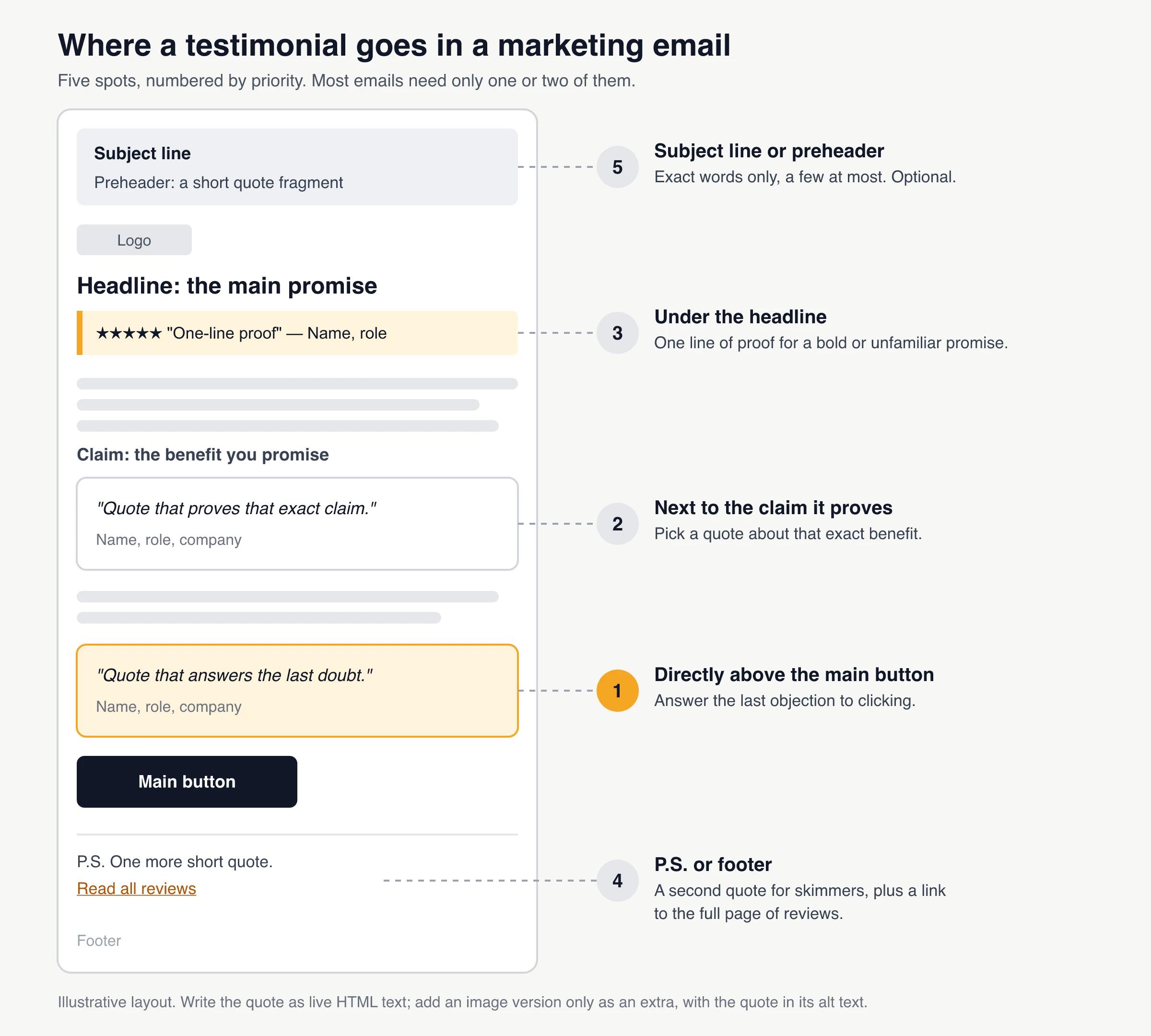
To use testimonials in email marketing, pick one short, specific quote that answers the doubt your email has to overcome, put it next to the claim it proves or directly above the main button, and send it as live HTML text with the customer's name and role. Add an image version (a quote card or a video thumbnail) only as an extra, repeat the quote in its alt text, and link it to a page where readers can see more. Get the customer's permission for marketing use before you send.
How to use testimonials in email marketing: a full example
A testimonial in an email does one job: it backs up a claim at the moment the reader doubts it. Everything else (format, design, position) follows from that.
Here is a complete example for a product launch email. The product, names and quote are placeholders, so swap in your own customer’s exact words.
| Part of the email | What goes there |
|---|---|
| Subject line | New: build next week’s staff schedule in one click |
| Preheader | “I had our schedule done before lunch.” Read what changed. |
| Headline | Next week’s schedule, built for you |
| Opening (2 sentences) | What the new feature does and who it’s for |
| Claim | “Auto-schedule fills every shift from your staff’s availability.” |
| Testimonial next to the claim | “I had our first auto-built schedule done before lunch, and nobody was double-booked.” [Customer name], Practice manager, [Clinic name] |
| Main button | Try auto-schedule |
| P.S. | One more short quote from a different type of customer, plus a “Read more customer stories” link |
Why it works:
- The quote proves the exact claim above it, not your brand in general.
- It is specific. “Before lunch” and “nobody was double-booked” are easier to believe than “great product”.
- It is attributed. Name, role and organization make it accountable; a photo helps but never replaces the name.
- It is live text, so it shows with images off (more on formats below).
- The preheader reuses the customer’s exact words, so the inbox preview already carries the proof.
Most emails need one or two testimonials, not a wall of them. If you need more proof than that, link to a page that holds it.
Where to put a testimonial in an email
Put proof where the reader hesitates. In practice that is one of five spots, shown here in rough order of priority.
Directly above the main button
This is the most useful spot. By the time readers reach the button, they know what you offer; what stops them is a last objection. Name that objection, then pick a quote that answers it.
- Worried it takes too long to set up? Use a quote about setup time.
- Worried about price? Use a quote about what the customer stopped paying for or doing.
- Worried it won’t fit their situation? Use a quote from a customer with the same role or company size.
Keep it to one or two sentences, then the button. Don’t put new information between the quote and the button.
Next to the claim it proves
Treat a testimonial like a citation. If your email says “reports take minutes, not hours”, the quote right under it should be about reports. A quote about friendly support in that spot reads as filler, even if it is true.
Under the headline
A one-line proof bar under the headline works when the promise sounds too good or the reader doesn’t know you yet: a star rating, a short quote fragment and a name. If it wraps to three lines on a phone, it is too long for this spot.
In the P.S. or footer
Many readers jump straight to the end. A P.S. with one more short quote catches them. It is also the natural place for a “Read more reviews” link to your full testimonials page. Keep it about the same offer.
In the subject line or preheader
A few words from a customer can make a strong preheader, because the inbox preview shows them before the email is even opened. If you put them in quotation marks, they must be the customer’s exact words.
Testimonial formats that work in email
Email clients strip scripts (so a website testimonial widget won’t run in an email), many block images by default, and few play video. Pick the format by what survives.
| Format | Renders reliably? | Best for | Watch out for |
|---|---|---|---|
| Text pull quote (HTML) | Yes, it’s plain text | The default for every email | Keep it short; style it with inline CSS |
| Star rating | Yes as text characters (★); images can be blocked | Ecommerce, cart and product emails | Show a real average and count only |
| Quote card image | Only when images load | Newsletters, launches, visual brands | Needs alt text with the full quote |
| Review or social post screenshot | Only when images load | Showing where the praise came from | Small text is hard to read on phones |
| Video thumbnail linking to a page | The image does; video plays on the page | Longer stories, B2B, high-ticket offers | Embedded video plays in few clients |
Text pull quote
A text quote is the most reliable format: it shows with images off, scales on phones, works in dark mode and is read aloud by screen readers. A simple, email-safe block:
<table role="presentation" width="100%" cellpadding="0" cellspacing="0" border="0">
<tr>
<td style="padding:16px 20px; background-color:#FFF7E6; border-left:4px solid #F5A524;
color:#111827; font-family:Arial, sans-serif; font-size:16px; line-height:1.5;">
<p style="margin:0 0 8px 0;">“I had our first schedule done before lunch.”</p>
<p style="margin:0; font-size:14px; color:#4B5563;">[Name], Practice manager, [Clinic]</p>
</td>
</tr>
</table>
Set the background and text colors explicitly rather than relying on defaults; some dark mode clients will still change them (see dark mode below).
Star rating
Type stars as text characters (★★★★★) or use a small image with alt text such as “Rated 5 out of 5”. Only show an average and count you can back up, and name the source if the reviews come from a third-party site.
Quote card image
A quote card is a designed image of one testimonial: quote, name, sometimes a photo, rating and logo. It looks good in a visual newsletter, but it disappears when images are blocked. Classic Outlook, for one, blocks automatic picture downloads by default. So either keep the quote as live text and use the image only for decoration, or put the full quote in the image’s alt text (see alt text below). Link the image to the full testimonial or your reviews page.
Screenshot of a review or social post
A screenshot of a public review or social post shows where the praise came from. The trade-offs are small text on phones and nothing at all with images off, so crop tightly, put the quote in the alt text and link to the original. A public post isn’t permission to use it in marketing, so ask the author.
Video testimonials: use a thumbnail that links to a page
Embedded video plays in very few inboxes. Can I Email’s HTML5 video support table estimates support at about 24% of the clients it tracks: it plays mainly in Apple Mail, Gmail replaces the video tags, and Yahoo Mail and AOL strip them. Can I Email lists this feature as last tested on September 16, 2019, so recheck any client you depend on.
What works everywhere:
- Use a still frame from the video as an image, with a visible play icon.
- Write alt text like “Play video: [Name], [Role], on switching from spreadsheets”.
- Link the image to a page that plays the video: a landing page, your testimonials page or a share page.
- Add one line of the transcript as text under the image, so the proof still lands if nobody clicks.
An animated GIF preview also works in most clients, but Can I Email’s animated GIF table marks Outlook for Windows (2007 to 2019) as not supporting animation (tested February 2020), so make the first frame work on its own.
Several testimonials in one email
For variety, stack two or three short quotes from different types of customers instead of building a carousel, or rotate one quote per send across a sequence. Link to a full testimonials page for the rest.
Testimonials in welcome, nurture, launch, cart and sales emails
Each email type has a different job, so the testimonial should answer a different doubt.
| Email type | The reader’s doubt | Testimonial to use | Where |
|---|---|---|---|
| Welcome | “Did I pick the right product? What do I do first?” | Getting started quickly | Next to the first-step button |
| Nurture / newsletter | “Does this advice work in practice?” | A customer who applied the lesson | Right after the key point |
| Launch | “Is the new thing worth trying?” | Early users of that feature | Under each benefit |
| Abandoned cart | “Will it fit, arrive and be easy to return?” | Reviews of that exact product | Beside the product and button |
| Re-engagement | “What have I missed?” | Praise for what changed since they left | Near the “come back” button |
| Sales follow-up (1:1) | “Has this worked for someone like me?” | A peer in the same role or industry | One sentence in the body |
| Renewal / upsell | “Is it still worth paying for?” | Months of use, team adoption, reliability | Above the renewal or upgrade button |
Welcome emails
Use a quote about getting started, next to the first-step button: “I had it set up in one afternoon” beats “Best tool ever”. In a three-email series, try credibility first, a first-week quote beside the onboarding step second, and a longer-term outcome third, with a different quote each time.
Nurture emails and newsletters
Beyond one line after the key point, a recurring newsletter slot works well: a two-sentence customer story, one quote and a link to the full version.
Product launch emails
Put one matching quote under each benefit. Beta-user quotes are fine if you say they were beta users; if they got free access for testing, that may need disclosing (see the permission section).
Abandoned cart emails
Quotes about fit, sizing, quality, delivery, setup or returns answer the silent questions. Use reviews of the exact product in the cart, and show a rating and review count only if they are real.
Re-engagement (win-back) emails
A quote about something you improved since the reader went quiet beats general praise: “The new mobile app finally lets me approve requests from my phone.” Don’t imply someone came back unless they did.
Sales follow-up emails
Keep it plain text. Add one sentence from a customer in the same industry or role (with permission for this use) and offer a next step: a short case study, or a reference call if that customer has agreed to take them.
Testimonial subject lines and preheaders
A customer’s words can do the work of a subject line, but they must be real and exact. Common patterns:
| Pattern | Example (placeholder) | Note |
|---|---|---|
| Quote as subject | “Done before lunch” | Exact words only when in quotation marks |
| Quote in preheader | Subject: New auto-schedule. Preheader: “I had our schedule done before lunch.” | The subject sets context, the preheader adds proof |
| Customer-led | How [Clinic name] stopped double-booking | Only with the customer’s permission to be named |
| Count-led | What [real number] customers say about [product] | Use a count you can show |
Tips:
- Front-load the strongest words, because inboxes cut off long previews, especially on phones.
- Don’t repeat the subject line in the preheader.
- Don’t fake reply threads (“Re:”) or invent quotes for the subject line.
Making testimonial images that work in email
If you use a quote card or a video thumbnail, these details decide whether it helps or breaks the email.
Size and file format
These are common practice rather than fixed rules:
- Export at twice the display size. A 1200×630 image shown at 600×315 in a 600px-wide email column stays sharp on high-density screens. Set
width="600"on theimgtag andmax-width:100%; height:auto;so it shrinks on phones. - Use PNG or JPG, compressed. PNG keeps the text in a quote card crisp; a small file loads faster on mobile data.
- Square (1080×1080) images work in a narrow single column, but they take up a lot of a phone screen. Landscape is usually easier to fit in an email.
Alt text
For an image of a quote, the alt text is the quote. W3C accessibility guidance on images of text says the text alternative must contain the same text as the image: ““I had our first schedule done before lunch.” [Name], Practice manager”. Don’t write “testimonial image” or stuff in keywords. For a video thumbnail, start with “Play video:” as in the video example above.
<a href="https://example.com/customer-stories">
<img src="https://example.com/quote-card.png" width="600" height="315"
alt="“I had our first schedule done before lunch.” [Name], Practice manager"
style="display:block; width:100%; max-width:600px; height:auto; border:0;">
</a>
Then preview the email with images turned off. If the testimonial disappears completely, put the quote back in as text.
Dark mode
Email clients handle dark mode in three ways, according to Litmus’s dark mode guide (client chart as of February 2025): no color change, partial inversion (light backgrounds turn dark) and full inversion (light and dark backgrounds may both be inverted). You can’t control what each client does, so make testimonial images that read in all three:
- Transparent images need help. Litmus suggests a translucent outline, glow or background shape so dark text on a transparent PNG stays legible on a dark background.
- Images with their own background need padding. Litmus advises enough padding around the focal point. For a quote card, a solid background with generous padding is the simpler choice in practice.
- Midtones help. Litmus suggests focusing on midtones while keeping accessible contrast.
- Explicit colors on HTML blocks keep your design in clients that don’t change colors; full-inversion clients can still flip them, so check the quote stays readable.
- Test in real clients before a big send, including at least one that fully inverts colors.
Getting testimonials into your emails with ShowTrust
In an email, a testimonial has to be text, an image or a link. ShowTrust covers all three:
- Share one testimonial as an image. From the dashboard you can share any approved testimonial as a PNG in landscape (1200×630) or square (1080×1080), in a light or dark version. The image has a solid white or near-black background and shows your logo, the star rating, the quote, the customer’s name and role. For a video testimonial with no written note, it shows the video’s thumbnail with a play icon instead of the quote.
- Share link. Each approved testimonial also has its own link with a rich preview. Link your quote card or video thumbnail to it, and for a video testimonial that page plays the video.
- Hosted wall page. The hosted wall page (
showtrust.to/w/your-name) shows all approved testimonials with the average rating and counts. It’s a natural target for a “Read all reviews” link in the P.S. - Copy the text. Copy the quote and attribution from the dashboard for the HTML block. Tags group testimonials by campaign, and the CSV export includes whether the customer ticked the permission box.
- No account needed for a one-off. The free quote card generator makes a 1200×630 or 1080×1080 PNG from any quote you paste in, with an optional “Made with ShowTrust.to” line you can switch off.
Limits to know:
- No native Mailchimp, Klaviyo or HubSpot integration: you download the image or copy the link into your email tool (webhooks and a REST API exist for automation).
- Share images cut long quotes with an ellipsis (about 300 characters landscape, 420 square).
- On the Free plan, share images and pages show a small showtrust.to credit unless you switch the credit off. Pro is white-label.
- Video testimonials are Pro only, with no captions or transcripts.
Need testimonials to use first? See how to collect testimonials and these testimonial request email templates.
Permission and disclosure for testimonials in emails
A testimonial in a marketing email is an endorsement in an ad. This is general guidance, not legal advice; rules differ by country and industry.
- Get permission for marketing use, including email. A ticked box on your collection form or a written “yes” to a specific request is a simple record. ShowTrust’s permission checkbox can be optional or required, and each testimonial records whether it was ticked. For the full process, see how to get permission to use testimonials.
- Quotation marks mean exact words. Under the FTC’s Endorsement Guides, an ad that presents an endorser’s exact words (for example with quotation marks) must use them, and an endorsement may not be presented out of context or reworded so as to distort the endorser’s opinion. Fix typos, but keep the meaning. If you trim, use an ellipsis.
- Be careful with results. A quote about a big result can be read as what a typical customer gets. The FTC’s guide on consumer endorsements says that if you can’t back up that the result is typical, you need to clearly disclose what people can generally expect.
- Disclose incentives. If the customer got a discount, gift card, free product or other reward for the testimonial, that is a material connection that should be disclosed clearly. A short line right under the quote, such as “[Name] received a thank-you coupon for sharing feedback,” puts the disclosure where readers see it.
- Remove it when asked. If a customer withdraws permission, take the quote out of your templates and automated flows, not only your website.
How to test testimonials in your emails
Run an A/B test that changes one thing at a time and keeps everything else the same: subject line, send time, audience split and button.
Good first tests: testimonial above the button vs. none; quote A vs. quote B (setup speed vs. support, say); text quote vs. a quote card with the same words; full name and role vs. first name only.
Measure clicks and conversions, not opens. Open rates are unreliable now. Apple’s Mail Privacy Protection prevents senders from seeing whether a message was opened, so a subject-line test judged on opens can mislead you.
Small lists produce noisy results. If the difference is tiny, treat it as a tie and keep the version that is simpler to maintain.
Checklist before you send
- One job per testimonial: it answers the doubt next to it, ideally right above the main button.
- Live text first: the quote and name are readable with images off.
- Images are extras: full quote in the alt text, checked in dark mode; video as a linked thumbnail.
- Permission and exact words: email use is agreed, and quoted words are the customer’s own.
- Disclosures: incentives and atypical results are disclosed.
- Test on clicks: one variable at a time, judged by clicks and conversions.
Frequently Asked Questions
- How many testimonials should I put in one marketing email?
- Usually one or two: the strongest directly above the main button and, if needed, a second short one in the P.S. For more proof, link to a full testimonials page.
- Can I embed a video testimonial in an email?
- Not reliably. According to Can I Email's support data, embedded video plays in only a few email clients, mainly Apple Mail, while Gmail, Yahoo Mail and AOL don't play it. Use a still frame with a play icon that links to a page that plays the video.
- Should a testimonial in an email be text or an image?
- Text first, because live HTML text shows when images are blocked and works with screen readers. Use a quote card image as an extra, with the full quote in its alt text.
- Do I need permission to use a customer testimonial in email marketing?
- Get permission for marketing use, including email, and keep a record of it, such as a ticked consent box or a written reply. Use exact words inside quotation marks and disclose any reward the customer received. This is general guidance, not legal advice.
- Can I use a testimonial as an email subject line?
- Yes, if it is short and in the customer's exact words. It often fits better in the preheader, with the subject line setting the context. Judge the result by clicks, since Apple Mail Privacy Protection hides whether messages were opened.
ShowTrust’s Free plan lets you collect unlimited testimonials for one project and share any approved one as a light or dark PNG or a link. Pro ($4.99/month or $49.99/year per project slot) adds video testimonials and removes the ShowTrust credit. Compare plans.
Written by
ShowTrust
Notes from the ShowTrust team on collecting testimonials and building authentic social proof.
Share: