October 8, 2026
·
Updated November 6, 2026
·
14 min read
Shopify Testimonial Widget Not Showing? Fix Blocks & Errors
The steps apply to any testimonial or review widget, whether it comes from a Shopify app or from a script pasted into a Custom Liquid section. Shopify details were checked against the Shopify Help Center and shopify.dev on November 6, 2026. If you're still choosing how to install a widget, start with how a Shopify testimonial widget works.

A testimonial widget that doesn't show on Shopify usually comes down to one of five things: its app embed is switched off in the theme you're looking at, its block was never added to that page's template, you edited a draft theme instead of the published one, the page can't run theme code at all (checkout, Order status, the password page), or the script loads but has nothing to show. Open the live page in a private window, check the browser's Network and Console panels, and you'll know which one it is before you touch any theme code.
Below: that check, then fixes for a greyed-out Add block button, a missing app block, testimonials showing twice, theme errors after pasting code, and code an uninstalled app left behind.
Why is my Shopify testimonial widget not showing?
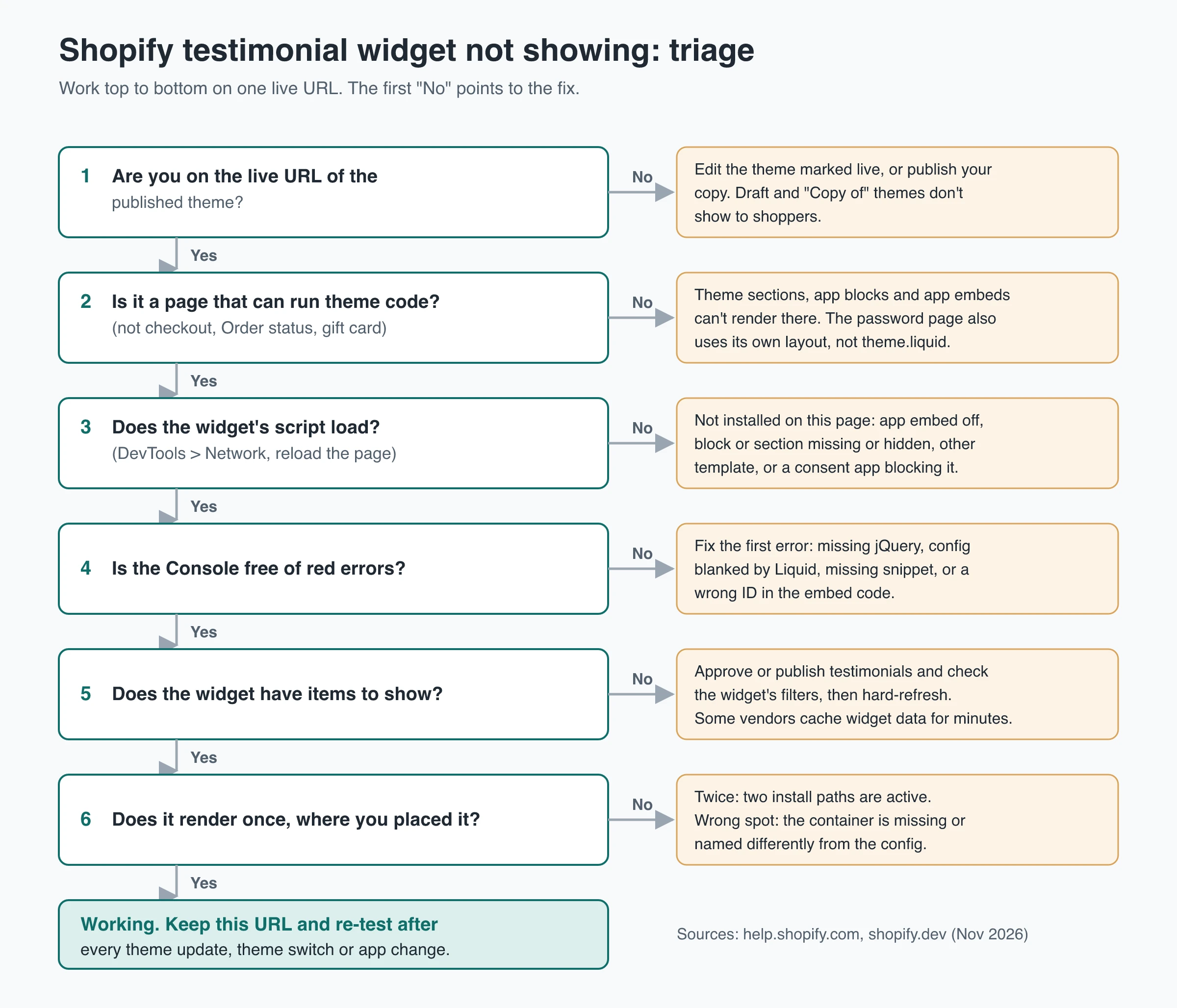
First question: is the widget’s code on the page at all? If not, the cause is on the Shopify side (theme, template, app embed, block); if it is, the cause is in the widget (errors, content, placement).
Before you change anything
- In Online Store > Themes, note which theme is live. Edits to any other theme don’t reach shoppers.
- Open the exact URL where the widget should appear in a private window and note its template (home page, a product, a page).
- Open the browser’s developer tools (F12, or Cmd+Option+I on a Mac). In Network, reload the page and filter by the widget’s script name. In Console, note the first red error. Screenshot both; an app’s support team will ask for them.
Change one thing at a time and re-test the same URL after each change, so you know which change fixed it.
Match the symptom to the fix
| What you see | Most likely cause | Where to look |
|---|---|---|
| Nothing at all | App embed off, block not added, or wrong template | Widget missing from the live store |
| Shows in the theme editor, not on the live store | You edited a draft or “Copy of” theme | Widget missing from the live store |
| Disappeared after a theme update or switch | Embed not re-activated, or a code edit didn’t carry over | Widget missing from the live store |
| Add block is greyed out, or the app isn’t in the list | Section limit, or the section can’t hold app blocks | Add block greyed out |
| Testimonials show twice | Two install paths active at once | Testimonials showing twice |
| Theme editor won’t load, “Liquid error” text, or an empty box with a Console error | Broken JSON template, leftover snippet call, or JavaScript error | Theme errors |
| Shows for you, not for some visitors | Consent app blocking the script, or caching | Widget missing from the live store |
Find where the widget loads from
A widget reaches a Shopify page in one of five ways, each switched off in a different place. Check them in order and stop at the first match.
| Install path | Where to check | What to know |
|---|---|---|
| App embed | Theme editor, App embeds icon in the sidebar | Loads before </head> or </body> on vintage and Online Store 2.0 themes; off after install until you switch it on (theme app extension configuration) |
| App block | The template’s sections in the theme editor sidebar | Sits inline inside a section; Online Store 2.0 (JSON template) themes only |
| Custom Liquid section or block | A Custom Liquid section on the same template whose code holds a <script> tag and a container <div> |
How tools without a Shopify app install; the Help Center suggests it for app code (apps in themes) |
| Theme code | Edit code, then the search button in the code editor’s left sidebar, which searches all files (code editor guide) | Search the vendor’s name and script domain. Code in layout/theme.liquid runs on almost every page |
| Script tag added by the app | Not visible in the theme editor or theme files | If nothing above finds the widget but its script still loads, this is probably it |
Script tags have a deadline: since October 1, 2026, apps can’t create or update them, and on March 1, 2027 Shopify stops loading them on storefronts (storefront script tag guide). What that means for your widget is covered in Shopify’s script tag deprecation and testimonial widget limits.
Keep one path per widget. If the app embed is on and you also pasted the same code into theme.liquid or a Custom Liquid section, remove the pasted copy; if you placed an app block, delete any manual copy. Some apps are built to use an app embed and an app block together (the embed loads the script, the block places the widget), as the Judge.me install guide shows. That is one install, not two copies.
Widget missing from the live store
Work through these in order; each is a common reason a widget that was set up isn’t on the page.
You edited a draft theme
Themes named “Copy of …” (a duplicate) or “Updated copy of …” (a theme update) are drafts. A theme update is added as a draft and your live theme stays as it is until you publish it (updating themes). Click Edit theme on the live theme and make the change there, or publish the draft you edited.
The app embed is switched off
- Go to Online Store > Themes and click Edit theme on your live theme.
- Click the App embeds icon in the sidebar.
- Turn on the toggle next to the app’s embed.
- Click Save, then reload the live URL.
Repeat this after a redesign. When you publish a different theme, apps you activated “won’t be active by default” in it, per the Help Center (apps in themes). App blocks and Custom Liquid sections don’t move across either; add them again on the new theme.
A theme update dropped your code edit
A theme update keeps your theme editor changes, including sections, blocks and app embed settings. Code edits carry over only when they don’t conflict with the new version; if they do, the theme card says “Theme added: code edits could not be included” and you copy them over yourself (updating themes). A widget pasted into theme.liquid is a code edit, so check it after every update.
The section is hidden or on another template
Sections and blocks can be hidden with the Hide button next to their name in the theme editor sidebar (sections and blocks). Check that yours isn’t.
Products and pages can also use alternate templates, such as product.alternate.json (JSON template docs). A widget added to the default product template won’t appear on products assigned to another one. Check the Theme template setting on that product or page, then open that template in the editor.
The page can’t run theme code
Sections can’t be added to gift card and checkout pages (theme structure), and app blocks and app embeds can’t render on checkout pages, including Order status (configuration). Testimonials there need a checkout UI extension, and the information, shipping and payment steps are Shopify Plus only; the plan rules are in the limits guide linked above.
While password protection is on, visitors only see a landing page (password page), and in Shopify’s Dawn theme that page uses its own password layout instead of theme.liquid (Dawn’s password template). A script pasted into theme.liquid doesn’t load there, so test after entering the store password.
The theme editor hasn’t run the script yet
When you add or change a section, the theme editor inserts its HTML without reloading the page, and JavaScript that runs on page load doesn’t run again (theme editor integration). A widget in a new Custom Liquid section can look blank in the editor preview even though it works. Click Save and check the live URL first.
A consent banner blocks the script
Shopify’s Customer Privacy API applies visitors’ consent choices to Shopify-managed surfaces such as pixels, audiences and checkout; scripts you paste into the theme aren’t on that list. Some third-party consent apps hold back scripts they classify as tracking until the visitor consents, for example Pandectes’ auto-blocking. If the widget shows for you but not for new visitors, test with consent accepted and declined, and check the app’s list of blocked scripts.
You’re seeing a cached copy
Hard-refresh (Cmd+Shift+R or Ctrl+Shift+R) or use a private window. Widget vendors may also cache testimonial data for a few minutes, so a newly approved testimonial can lag behind the dashboard.
Shopify “Add block” greyed out or app block missing
These are theme editor placement limits, not widget bugs, per the Help Center’s sections and blocks page and the developer docs on app blocks.
| What you see | Cause | Fix |
|---|---|---|
| Add block is greyed out | The section has reached its maximum number of blocks, which your theme’s designer sets | Remove an unused block from that section, or add the widget in another section |
| Can’t add another section | A template holds up to 25 sections and 1,250 blocks across all sections | Remove unused sections, or move content to another template |
| Can’t add a block inside a nested block | Nesting stops at eight levels | Add the widget at a higher level |
| The app isn’t in the block list | The section only offers the block types its designer chose, doesn’t accept app blocks, or the app limits its block to some templates; vintage themes have no app blocks | Use Add section and choose the app from the Apps list, use the app embed if there is one, or check the app’s docs |
| “Apps not supported” or “Apps section is invalid” | The theme’s own apps.liquid wrapper section lacks app block support or a preset |
Ask the theme developer to fix that section |
| Can’t place it in the header or footer of an older theme | App blocks don’t work in statically rendered sections | Place it in a template section, or ask the theme developer |
If no section takes the block, the Help Center says to check the theme’s documentation or ask its developer which sections support app blocks (apps in themes).
Testimonials showing twice on Shopify
A widget that renders twice is almost always loaded twice:
- An app embed plus the same code pasted into
theme.liquidor a Custom Liquid section. - The same Custom Liquid section on a template and in the header or footer group, which shows on every page.
- An old script tag and the app’s new app embed running at the same time, which Shopify says loads the script twice and can render the app’s UI twice (storefront script tags).
- Leftover code from a previous testimonial app plus the new app’s widget.
In Network, filter by the script’s file name: two requests means two loads. Search all theme files in the code editor for that file name, remove one copy, and confirm one request and one widget on the same URL.
Fix theme errors after adding widget code
These errors break the page or the theme editor rather than just hiding the widget.
| Error | How to spot it | Fix |
|---|---|---|
| Broken JSON template | The theme editor won’t open the template; code was pasted into templates/*.json |
Restore the file from your duplicate theme. Put the code in a section or Custom Liquid instead |
| “Liquid error: Could not find asset snippets/….liquid” | Error text printed on the storefront | Remove the {% render %} or {% include %} line that calls the deleted snippet |
| “$ is not defined” or “jQuery is not defined” | Console error; widget box stays empty | Ask the vendor for a version that doesn’t need jQuery; don’t load jQuery site-wide for one widget |
| Custom Liquid won’t save | Error when you click Save | Remove invalid Liquid, and keep the field under 50 KB |
| Widget config is blank | Console error about a missing ID or setting | {{ }} placeholders in the snippet were read as Liquid; ask the vendor for a Liquid-safe snippet |
| Theme styles change, or the page jumps | The widget shares the page’s CSS, or loads without reserved space | Prefer a widget that renders in a shadow root or iframe; give its container a min-height close to its final height |
Why these errors happen
- JSON templates are data files: a list of sections and their settings in a fixed schema (JSON templates). HTML or a
<script>tag makes the file invalid. - Custom Liquid content can’t exceed 50 KB, invalid Liquid causes an error on save, and non-existent Liquid tags render as empty strings (input settings). A snippet that uses
{{ name }}-style placeholders for its own templating loses them. - jQuery: the layout files of Shopify’s Dawn and Horizon themes don’t load it (checked November 2026), so snippets that assume
$exists fail there. - Leftover snippet calls remain when an app deletes its snippet file but not the line that renders it.
More on style isolation and layout shift: embedding testimonials on your website.
Undo a bad edit
Before you edit theme.liquid, config/settings_data.json or any template by hand, duplicate the live theme and work on the copy. For Liquid files, the code editor keeps earlier versions: pick one in the Timeline panel at the bottom right, review the differences and click Revert contents (code editor).
Remove leftover code after uninstalling a testimonial app
Shopify removes an app’s blocks from your themes automatically when you uninstall it (theme app extension UX). Code written into theme files is different: “Some apps add code to your online store theme that isn’t automatically removed,” says the Help Center (uninstalling apps). Before uninstalling, check the app’s App Store listing for extra steps, or contact the developer through Settings > Apps > Get support.
To clean up by hand:
- Duplicate the live theme and work on the copy.
- While the app is still installed, switch off its app embed and delete its blocks and sections.
- In the code editor, search all files for the app’s name, script domain and snippet names. Shopify’s third-party script audit guide points to
layout/theme.liquidand thesnippets/folder first. - Delete leftover
<script>and<link>tags and the{% render %}or{% include %}lines that call the app’s snippets, then the snippets. - Preview the copy, check the Console on the pages that showed the widget, then publish.
Checks for a ShowTrust wall on Shopify
ShowTrust has no Shopify app, app block or app embed. On Shopify its embed code, a script plus a <div id="showtrustto-widget"> container from the wall settings docs, goes into a Custom Liquid section. The app embed and app block checks don’t apply, but the theme-switch rule does: add the section again on a new theme, and delete it yourself when you stop using it. The snippet has no {{ }}, so Custom Liquid saves it as is. Then check:
- Sample testimonials you didn’t write. Your first project starts with six demo testimonials that show on the wall until you click Clear demo data (managing testimonials); clear them before launch.
- An approved testimonial isn’t showing. Only Approved testimonials appear, not Pending ones, and the widget is cached, so a new approval can take up to about five minutes to reach the page.
- The wall appears at the bottom of the page. The script didn’t find its container: the
idmust beshowtrustto-widgetor match thecontainerIdin the config. Without one, the wall is added at the end of the page, on every page if the script sits intheme.liquid. Keep script and container together in one Custom Liquid section. - Two walls, one at the bottom. The script is on the page twice; with default settings the second copy can’t reuse the first container and adds another wall at the end. Search the theme for
showtrustto-widget.jsand keep one. - Console:
ShowTrustTo: projectId is required in SHOWTRUSTTO_WIDGET_CONFIG. Paste the snippet again from the dashboard. - Console:
ShowTrustTo: Failed to load widget. Check Network for a blocked request (an ad blocker or consent app) and that the project ID is right. - Theme fonts and colors don’t apply. By design, the wall renders inside a shadow root so theme CSS and its styles stay apart. Set
allowCssOverride: truein the config to let your theme’s CSS style it (theming).
For a clean reinstall, follow the Custom Liquid steps in how to add testimonials to Shopify.
Know where your widget comes from
Most Shopify widget problems stop being mysterious once you can say in one sentence where the widget loads from: “an app embed on the live theme” or “one Custom Liquid section on the home page”. If you can’t, start there, remove every second copy, and test one URL at a time.
If you still need the app’s support team, send the live URL and its template, the theme name and any recent update or switch, a screenshot of App embeds, and the first Console error.
Frequently Asked Questions
- Why is my testimonial widget not showing on Shopify?
- Check that you are on the published theme, the app embed is on, the block or Custom Liquid section is on that page's template and not hidden, and the page isn't checkout, Order status or the password page. If the script loads but nothing shows, look for a Console error or a widget with no approved testimonials.
- Why is Add block greyed out in the Shopify theme editor?
- The section has reached its maximum number of blocks, which each theme sets per section. Remove an unused block or add the widget in another section. A template also caps out at 25 sections and 1,250 blocks.
- Why doesn't my app's block appear in the Shopify theme editor?
- App blocks need an Online Store 2.0 theme and a section that accepts them, and the app may limit its block to certain templates. Try Add section and the Apps list, use the app's app embed if it has one, or ask the theme developer which sections support app blocks.
- Why are my testimonials showing twice on Shopify?
- The widget is loaded twice: usually an app embed plus a pasted copy of its code, the same section in a template and the footer, or an old script tag next to the new app embed. Filter Network by the script name, then search the theme code and keep one copy.
- How do I remove app code from my Shopify theme after uninstalling?
- App blocks are removed automatically, but code an app added to theme files can stay. On a duplicate theme, search all files for the app's name and script domain, delete leftover script tags and render lines, then publish.
- Do I need to set up my testimonial widget again after changing themes?
- Yes, if you publish a different theme: apps aren't active by default there, so switch the app embed on again and re-add app blocks and Custom Liquid sections. A theme update carries over editor changes and app embed settings, but code edits only if they don't conflict.
Want a testimonial wall on Shopify without installing an app? ShowTrust is a pasted script in a Custom Liquid section, so you still re-add it when you switch themes. Free covers one project with unlimited testimonials and a small credit link you can switch off; Pro is $4.99/month or $49.99/year per project slot and adds white-label and video testimonials.
Written by
ShowTrust
Notes from the ShowTrust team on collecting testimonials and building authentic social proof.
Share: