August 24, 2026
·
Updated November 6, 2026
·
14 min read
Shopify Testimonial Widget: Types, Setup and Section Schema
This guide covers what a testimonial widget on Shopify is, how sections, app blocks, app embeds and Custom Liquid differ, a working testimonials section with {% schema %}, where to place testimonials (including checkout limits by plan), and what to check before installing a testimonial or review app. Shopify details were checked against shopify.dev and the Shopify Help Center in November 2026.


A Shopify testimonial widget is a block of customer quotes, names, photos or star ratings that sits inside your theme, usually on the home page, product pages or a landing page. It gets onto the page in one of four ways: a theme section written in Liquid with a {% schema %}, an app block, an app embed, or a script pasted into a Custom Liquid section.
Which one you use decides where the testimonials are stored, which themes it works with and what you have to clean up later. Below: how each method works in Online Store 2.0, a complete testimonials section with a valid schema you can paste into your theme, and how to pick an app.
What is a testimonial widget on Shopify?
A testimonial widget displays what customers say about your store or product: a short quote, a name, sometimes a photo, a star rating or a video. On Shopify it is not a special feature of the platform. It is ordinary theme content, rendered by a section, a block or a script, that happens to hold testimonials.
Testimonials and product reviews often get lumped together, but they answer different questions:
| Testimonials | Product reviews | |
|---|---|---|
| What it describes | The store, the brand or the overall experience | One product or variant |
| Who picks what shows | You, after approval | Usually every review, with moderation rules |
| Typical placement | Home page, landing pages, About, cart | Product page, under the buy box |
| Typical tool | Theme section, testimonial app or hosted widget | Review app |
| Google review stars | Not for reviews about your own business | Possible for product pages with product review markup |
If you sell many SKUs and want ratings per product, you need a review app that collects product reviews. If you want a curated set of quotes that answers “is this store legit?”, a testimonial widget is enough.
How Shopify testimonial widgets work
Every testimonial widget has two halves: somewhere the testimonials are stored, and something that renders them into your theme. The storage is either your theme (text typed into the theme editor) or an outside service (an app or hosted tool). The rendering always happens through one of the theme mechanisms below.
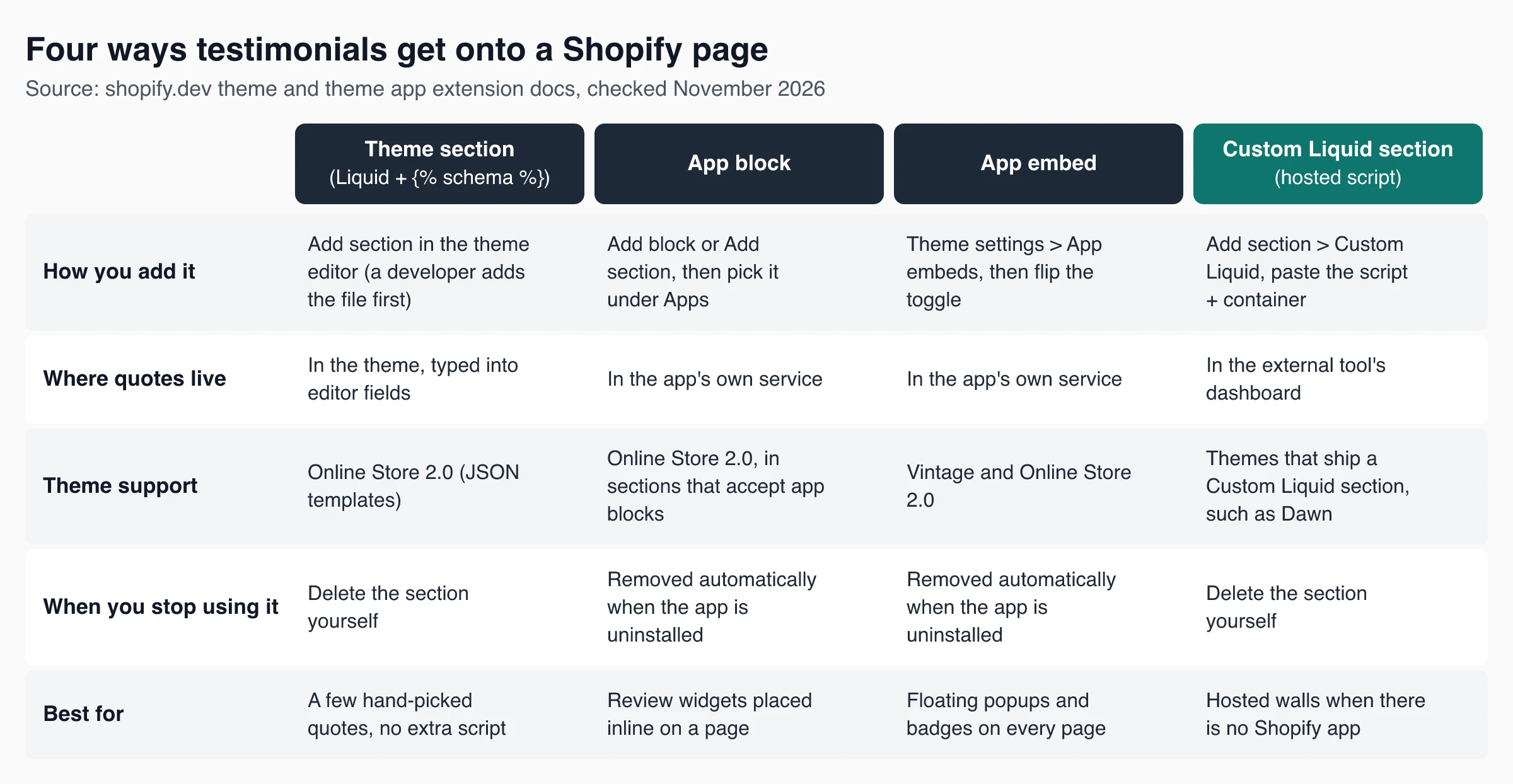
Sections and blocks in Online Store 2.0
Online Store 2.0 themes build pages from JSON templates. Each template lists sections, and each section can contain blocks that you add, remove and reorder in the theme editor. Shopify’s sections documentation puts the limits at 25 sections per template and up to 50 blocks per section; the Help Center adds a ceiling of 1,250 blocks per template.
A testimonials section is a Liquid file in the theme’s sections folder. Its {% schema %} tag tells the theme editor which settings and blocks to show, so each quote becomes a block you can edit without touching code.
App blocks vs app embeds
Apps built on theme app extensions plug into your theme in two ways, as described in Shopify’s theme app extension configuration docs:
- App blocks render inline content, such as a review carousel under the product description. You add them with Add block or Add section in the theme editor and pick the app under Apps. They work only in Online Store 2.0 themes, and only inside sections that accept app blocks.
- App embeds inject code before the closing
</head>or</body>tag. They suit floating or overlaid elements such as popups, badges and chat bubbles. They are switched off after install; you turn each one on under Theme settings > App embeds. They work in both vintage and Online Store 2.0 themes.
Both are tied to a theme. If you switch or duplicate themes, check that the block is placed and the embed is switched on in the new one. When an app is uninstalled, Shopify’s theme app extension UX guide says its blocks are removed from the theme automatically.
Custom Liquid and pasted scripts
Many hosted testimonial tools have no Shopify app at all. You paste their embed code into a Custom Liquid section in the theme editor. Shopify’s reference theme Dawn ships this section (source on GitHub); it outputs whatever HTML, Liquid or script you paste into it.
This path works without an app install, but nothing removes it for you. If you stop using the tool, delete the section yourself.
What the 2026 ScriptTag shutdown changes
Older apps loaded storefront widgets through Shopify’s ScriptTag API. According to Shopify’s script tag deprecation guide, apps can no longer create or update script tags after October 1, 2026, and script tags stop running on storefronts on March 1, 2027 (they already stopped on the Order status page on August 26, 2026). For storefront scripts, Shopify points apps to theme app extensions, the framework behind the app blocks and app embeds described above.
The guide covers scripts that apps inject through that API. It does not address code a merchant pastes into their own theme or a Custom Liquid section. If an app you use still relies on script tags, ask the developer about their migration before March 2027. The Shopify testimonial widget limitations post covers the timeline in more detail.
Types of Shopify testimonial widgets
“Type” can mean how the widget is installed or how it looks. Both matter, so the table mixes them and says which is which.
| Widget type | Kind | Where it fits | Setup | Watch out for |
|---|---|---|---|---|
| Theme testimonials section | Install method | Home, landing, About pages | Theme editor if your theme has one; otherwise a section file | Quotes live in the theme, so they don’t follow you to a new theme |
| App block | Install method | Product pages, inline anywhere a section accepts app blocks | Install app, then Add block | Online Store 2.0 themes only |
| App embed | Install method | Site-wide popups, floating badges | Install app, then switch on in App embeds | Off by default; per theme |
| Custom Liquid embed | Install method | Any template with a Custom Liquid section | Paste script and container | Manual removal; test on a duplicate theme |
| Grid or masonry wall | Layout | Dedicated testimonials page, long landing pages | Any of the above | Long pages on mobile |
| Carousel or slider | Layout | Home page, tight spaces | Any of the above | Auto-rotation hides most quotes; give users a pause |
| Video testimonials | Content format | Landing pages, high-consideration products | Usually an app or hosted tool | Page weight; captions |
A testimonial slider saves space, but visitors only see the first card or two. A static grid shows more proof at once and is easier to make accessible.
Testimonial elements in landing page builders
Landing page builder apps organize their editors around element types. GemPages, for example, has a countdown timer element that you find in its editor and drag onto the page, like any other element. Testimonial or review elements in a builder are configured inside that builder’s editor, not through a section schema in your theme.
In a plain Online Store 2.0 theme, every widget type, whether a countdown, a testimonials grid or an FAQ, is just another section file. Its {% schema %} decides what you can edit in the theme editor. That is what the next section builds.
Build a testimonials section with section schema
If your theme has no testimonials section and you don’t want an app, you can add one. The file below is a complete section: markup, a small stylesheet and a {% schema %}. It passes Shopify’s Theme Check linter, and every schema key comes from Shopify’s section schema reference.
Step 1. Duplicate your live theme first: Online Store > Themes > … > Duplicate. Work on the copy.
Step 2. Open the code editor on the copy (… > Edit code), select the sections folder, click New file and name it testimonials.liquid.
Step 3. Replace the placeholder code with this and save:
<div class="testimonials page-width">
  {%- if section.settings.heading != blank -%}
    <h2 class="testimonials__heading">{{ section.settings.heading | escape }}</h2>
  {%- endif -%}

  <ul class="testimonials__list" role="list">
    {%- for block in section.blocks -%}
      {%- case block.type -%}
        {%- when '@app' -%}
          <li class="testimonials__item">{% render block %}</li>
        {%- when 'testimonial' -%}
          <li class="testimonials__item" {{ block.shopify_attributes }}>
            <figure>
              {%- if block.settings.rating > 0 -%}
                <p class="testimonials__rating" aria-label="{{ block.settings.rating }} out of 5 stars">
                  {%- for i in (1..block.settings.rating) -%}★{%- endfor -%}
                </p>
              {%- endif -%}
              <blockquote>{{ block.settings.quote }}</blockquote>
              <figcaption>
                {%- if block.settings.photo != blank -%}
                  {{ block.settings.photo | image_url: width: 96 | image_tag: alt: block.settings.author, loading: 'lazy' }}
                {%- endif -%}
                <strong>{{ block.settings.author | escape }}</strong>
                {%- if block.settings.detail != blank -%}
                  <span>{{ block.settings.detail | escape }}</span>
                {%- endif -%}
              </figcaption>
            </figure>
          </li>
      {%- endcase -%}
    {%- endfor -%}
  </ul>
</div>

{% stylesheet %}
  .testimonials__list { display: grid; gap: 1.5rem; grid-template-columns: repeat(auto-fit, minmax(240px, 1fr)); list-style: none; padding: 0; }
  .testimonials__item img { border-radius: 50%; width: 48px; height: 48px; object-fit: cover; }
{% endstylesheet %}

{% schema %}
{
  "name": "Testimonials",
  "tag": "section",
  "class": "section",
  "max_blocks": 12,
  "settings": [
    {
      "type": "text",
      "id": "heading",
      "label": "Heading",
      "default": "What customers say"
    }
  ],
  "blocks": [
    {
      "type": "testimonial",
      "name": "Testimonial",
      "settings": [
        {
          "type": "richtext",
          "id": "quote",
          "label": "Quote",
          "default": "<p>Paste a short quote from a customer who agreed to be featured.</p>"
        },
        {
          "type": "text",
          "id": "author",
          "label": "Customer name",
          "default": "Customer name"
        },
        {
          "type": "text",
          "id": "detail",
          "label": "Detail (product bought, city or date)"
        },
        {
          "type": "image_picker",
          "id": "photo",
          "label": "Photo (only with permission)"
        },
        {
          "type": "range",
          "id": "rating",
          "label": "Stars (0 hides them)",
          "min": 0,
          "max": 5,
          "step": 1,
          "default": 5
        }
      ]
    },
    {
      "type": "@app"
    }
  ],
  "presets": [
    {
      "name": "Testimonials",
      "blocks": [
        { "type": "testimonial" },
        { "type": "testimonial" },
        { "type": "testimonial" }
      ]
    }
  ]
}
{% endschema %}
Step 4. Open the theme editor on the copy, choose a template, click Add section and pick Testimonials. It arrives with three empty testimonial blocks. Fill them in, preview on mobile, then publish the theme.
What each part of the schema does
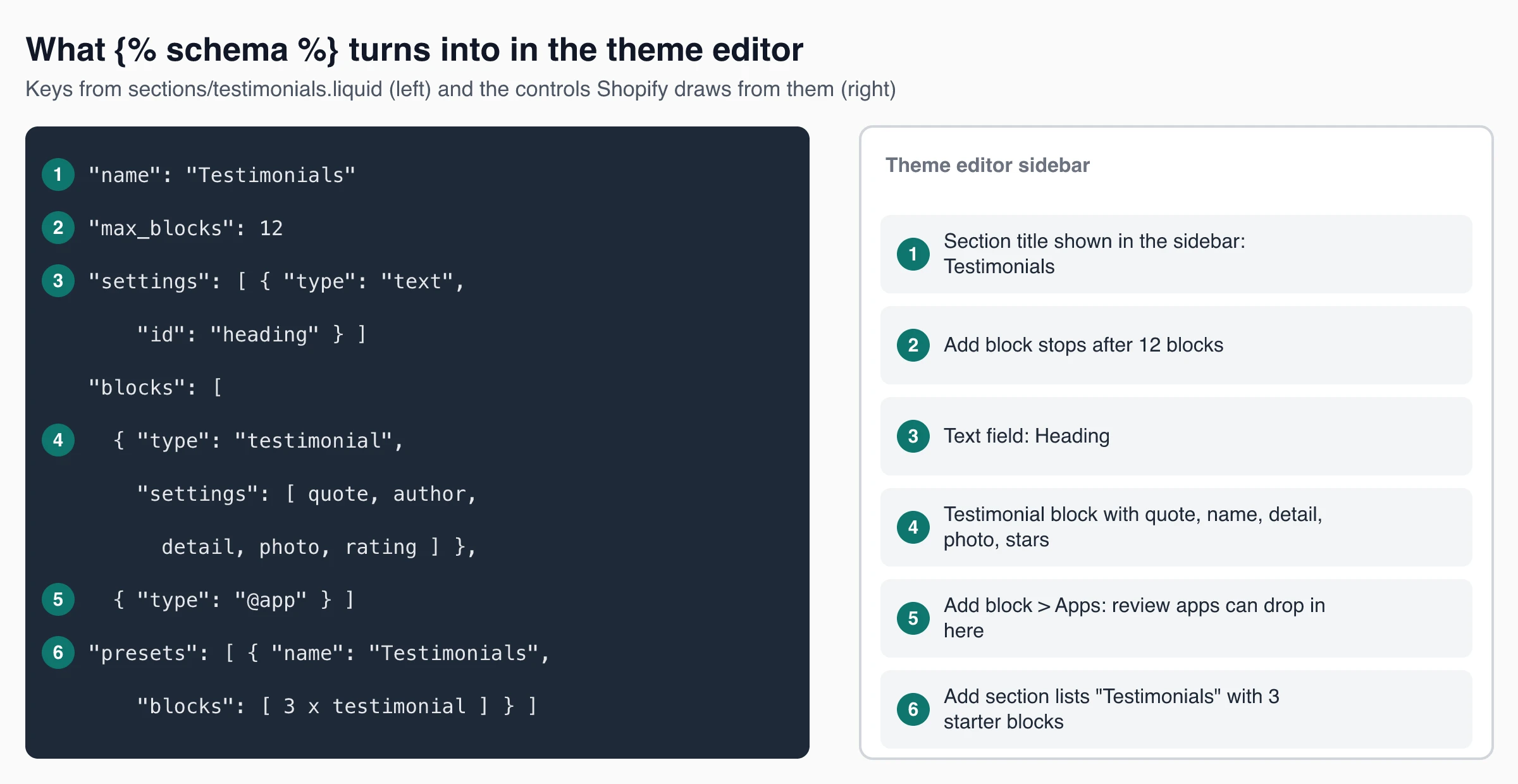
nameis the label in the theme editor.tagmakes Shopify wrap the section in asectionelement instead of the defaultdiv, andclassaddssectionnext to the wrapper’sshopify-sectionclass.max_blockscaps the section at 12 testimonials. Shopify’s hard limit is 50.settingsholds section-level fields, here one text field for the heading.blocksdefines atestimonialblock with five settings: arichtextquote, the customer’s name, a detail line (product, city or date), an optional photo and a 0–5 starrange.{ "type": "@app" }lets review or testimonial apps drop their app blocks into this section. The Liquid loop renders them with{% render block %}.presetsmakes the section appear under Add section, with three starter blocks.
Each block’s wrapper carries {{ block.shopify_attributes }}, which the theme editor needs to select and reorder blocks. The photo uses the image_url and image_tag filters, so Shopify serves a resized image with srcset.
Schema rules that cause most errors
These come from Shopify’s input settings and app blocks docs:
- One
{% schema %}per file, containing valid JSON only. Liquid inside the schema is not rendered. - A
rangesetting needs a numericdefault,minandmax. Leave outdefaultand the section won’t save. - A
richtextdefault must start with<p>or<ul>. image_pickerdoesn’t accept a default.- Don’t add
limitto the@appblock entry; Shopify rejects it. - Setting IDs must be unique within the section and within each block.
If you never want app blocks here, delete the @app entry and the when '@app' branch together. For a version that stores testimonials as metaobjects and reuses them across pages, see the guide to adding a testimonial wall to Shopify.
Add a hosted testimonial widget with Custom Liquid
Hosted tools keep testimonials, approval and layout in their own dashboard and give you a snippet. On Shopify the snippet goes into a Custom Liquid section:
- Duplicate the live theme and open the theme editor on the copy.
- Pick the template (home page, a product template or a page template) from the top drop-down.
- Click Add section, choose Custom Liquid and paste the snippet into its field.
- Save, preview on desktop and mobile, then publish.
ShowTrust works this way. It has no Shopify app, no theme app extension and no Shopify review sync; on Shopify it is a script plus a container div that you paste into Custom Liquid. The snippet from the Wall of Love docs looks like this:
<script>
  (function() {
    window.SHOWTRUSTTO_WIDGET_CONFIG = { projectId: 'YOUR_PROJECT_ID' };
    var script = document.createElement('script');
    script.src = 'https://app.showtrust.to/showtrustto-widget.js';
    script.async = true;
    document.head.appendChild(script);
  })();
</script>

<div id="showtrustto-widget"></div>
The script is under 8 kB and loads async (one-line install). The wall renders inside a shadow root, so theme CSS and widget CSS don’t leak into each other unless you set allowCssOverride: true. If the container div is missing, the wall is appended at the end of the page. Only testimonials you approve appear, and newly approved ones can take about five minutes to show because of the widget cache. The embed testimonials guide covers script vs iframe embeds and layout shift in more depth.
Add a testimonial widget with an app
With an app, the steps depend on whether it ships an app block, an app embed or both. Shopify’s Help Center describes both flows in extending your theme with apps:
- App block: Online Store > Themes > Edit theme, open the page, click Add block in a section (or Add section on the template), choose the app under Apps, position it and save.
- App embed: in the theme editor, click the App embeds icon in the sidebar, switch on the app’s embed, adjust its settings and save.
Some popular review and testimonial apps on the Shopify App Store, with list prices as of November 2026:
| App | Focus | Free plan | First paid plan |
|---|---|---|---|
| Judge.me Product Reviews | Product and store reviews, includes testimonial carousels | Yes: unlimited reviews, review widgets, carousels | Awesome, $15/month (15-day trial) |
| Loox | Photo and video product reviews | Yes: up to 500 orders | Convert, $49.99/month for 300 orders, plus $50 per extra 300 |
| Reputon Testimonials Slider | Dedicated testimonials slider | Yes: 1 widget, up to 4 testimonials | Standard, $5.99/month: up to 150 testimonials, YouTube and TikTok video, form page |
| Ravoo: Reviews & Testimonials | Testimonials plus product reviews | Yes: 1 widget, 10 testimonials | Pro, $7.99/month: unlimited widgets and testimonials |
App Store prices can show in your local currency and change often; check the listing before you install. Judge.me and Loox are review apps first; Reputon and Ravoo are closer to pure testimonial widgets. Hosted tools that sit outside Shopify, such as Senja or ShowTrust, install through Custom Liquid instead.
Where to place testimonials on a Shopify store
Put proof where hesitation shows up, not where it’s convenient to install:
- Home page, below the hero or next to featured products, for first-time visitors deciding whether the store is real.
- Product pages, near the buy button. Product reviews usually win here; a short store-level testimonial can still help with shipping or support worries.
- Cart page, one or two short quotes about delivery, returns or support.
- Landing pages for paid traffic, where visitors arrive without context.
- A dedicated testimonials page, linked from the footer or About page, using a grid or one of several wall layouts.
- Thank-you and Order status pages, to ask for a testimonial rather than show one.
Checkout is the exception. Theme sections, Custom Liquid and app embeds don’t run there. Per Shopify’s checkout extensions overview, UI extensions on the information, shipping and payment steps are available only on Shopify Plus, while extensions on the Thank you and Order status pages are available on all plans except Shopify Starter.
How to choose a Shopify testimonial app
Treat a testimonial app like infrastructure. You want the smallest tool that covers what you need, with a clean way out.
Must-haves
- Moderation: nothing goes live until you approve it.
- Export: a CSV or API export, so testimonials survive a switch of app or theme.
- Install method: a theme app extension (app block or app embed), or a snippet you control. Avoid apps that still depend on ScriptTag.
- Speed: check the page in PageSpeed Insights before and after. Ask whether the app’s embed loads on every page or only on the templates that need it; Shopify lets apps limit an app embed to specific templates.
- Layout control: at least a grid and a carousel, with fonts and colors that match your theme.
Risk checks
- Permissions: the app should request only the data its features need. A testimonials slider rarely needs order data.
- Data portability: export a test file before you commit.
- Theme impact: no manual code edits you can’t reverse.
- Uninstall: app blocks and embeds are removed automatically; anything the app or you pasted into theme files is not.
- Consent: customers agreed to their name, photo and words being shown, and you can show when and how they agreed.
Do testimonial widgets get Google review stars?
Usually not. Google’s review snippet guidelines treat reviews a business publishes about itself on its own site as self-serving, and those aren’t eligible for star rich results. Product reviews with product markup are a different case, which is one reason review apps advertise rich snippets.
Separately, the FTC’s Consumer Reviews and Testimonials Rule, in effect since October 21, 2024, bans fake testimonials and some forms of review suppression, such as threats to get negative reviews removed. Choosing which real quotes to feature isn’t covered by the rule, but the FTC notes that misleading selection can still be deceptive under the FTC Act. Inventing quotes is banned outright.
Pick one path and ship it
- Decide what you’re showing: a few store-level quotes (testimonial widget) or per-product ratings (review app).
- Choose the install path: a theme section if you want no extra script, an app block or embed if you want an app to manage collection, or Custom Liquid for a hosted wall.
- Work on a duplicate theme, place it on one page, and check mobile layout and page speed.
- Publish with six to twelve approved testimonials that name a real outcome, then add placements one at a time.
If something doesn’t render, the Shopify widget troubleshooting guide covers missing blocks, disabled embeds and duplicate scripts.
Frequently Asked Questions
- Can I add testimonials to Shopify without an app?
- Yes. Use your theme's own testimonials section if it has one, add a section file with a {% schema %} like the example above, or paste a hosted widget's script into a Custom Liquid section. None of these needs an app install.
- What is the difference between an app block and an app embed?
- An app block renders inline inside a section and works only in Online Store 2.0 themes. An app embed injects code before the closing head or body tag, suits floating elements like popups, works in vintage themes too, and has to be switched on under Theme settings > App embeds.
- Why doesn't my testimonials section show up under Add section?
- The section file needs a presets entry in its schema to appear in the Add section picker, and the template must be a JSON template. Also check that the schema is valid JSON with no Liquid inside it.
- Can I show testimonials in Shopify checkout?
- Only through checkout UI extensions. Extensions on the information, shipping and payment steps need Shopify Plus; the Thank you and Order status pages are open to all plans except Shopify Starter.
- Will a testimonial widget give my store star ratings in Google?
- Not for testimonials about your own business. Google treats those as self-serving reviews, which are not eligible for review stars. Product reviews marked up on product pages are handled differently.
- Does ShowTrust have a Shopify app?
- No. ShowTrust installs on Shopify as a script and container pasted into a Custom Liquid section or theme file. It has no app block, app embed or Shopify review sync.
Want a hosted wall without installing a Shopify app? ShowTrust is free for one project with unlimited testimonials and a small credit link you can switch off; Pro is $4.99/month or $49.99/year per project slot and adds white-label and video testimonials.
Written by
ShowTrust
Notes from the ShowTrust team on collecting testimonials and building authentic social proof.
Share: